How to View Reports in QuickBooks Online
How to View Reports in QuickBooks Online
Reports turn the transactions you have recorded into the financial picture of the business — the Balance Sheet, Profit and Loss, ageing summaries and dozens more. QuickBooks Online groups them into standard reports you can open, adjust for any period, and export or save for reuse.
Step 1 – Open the Reports Centre and Choose a Report
Reports are grouped down the page: Favourites at the top, then Custom report builder, Business overview, and further groups such as Who owes you and What you owe. You can also type a report name into the search box at the top of the page to jump straight to it.
A Reports – Click Reports in the left navigation bar to open the Reports centre.
B Balance Sheet – Click the report name to open it — here the Balance Sheet from the Favourites group.
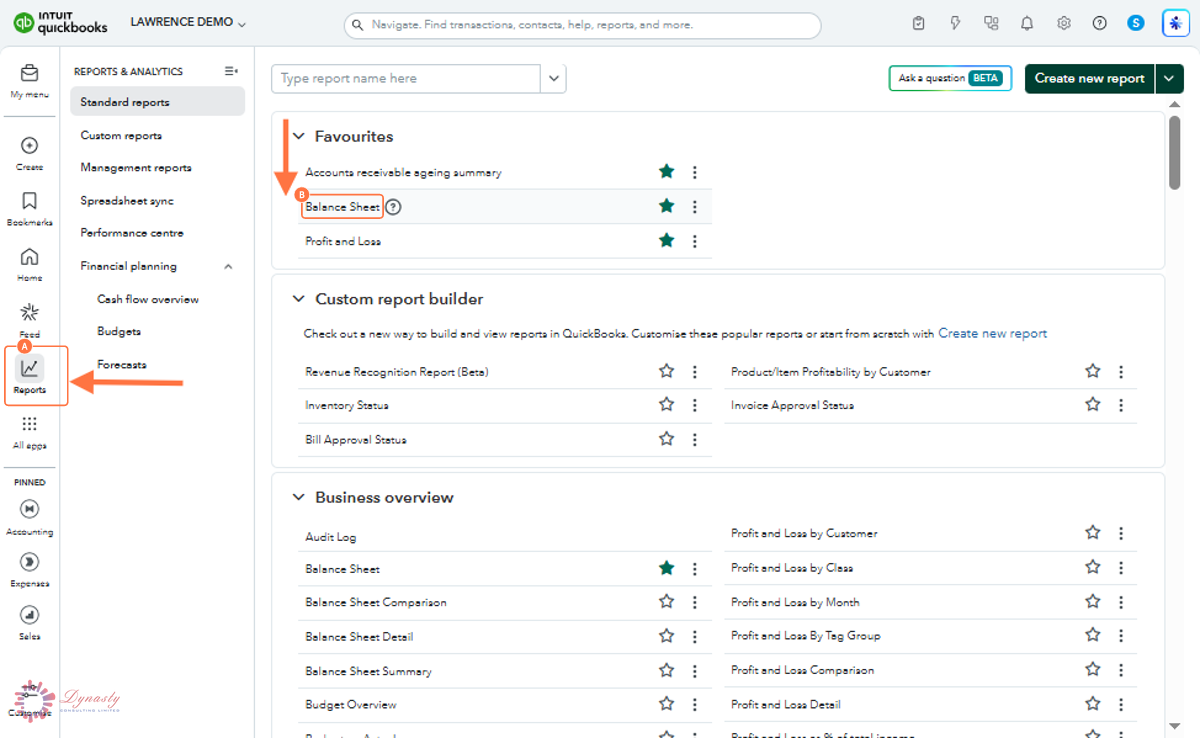
Figure – Opening a report from the Reports centre
Step 2 – Set the Report Options and Read the Result
The footer of the report shows the basis and the exact time it was run — useful evidence when you file or share it. Use Save As at the top right to keep the report with your chosen settings under Custom reports so you can run it again without re-setting the options.
A Report period – Choose a preset period such as Last month, This quarter or This year to date.
B From – The first day of the period. Setting a date here switches the period to Custom.
C To – The last day of the period — the "as of" date for a Balance Sheet.
D Accounting method – Cash counts income and expenses when money moves; Accrual counts them when invoiced or billed. Choose the basis your accounts are prepared on.
E Display columns by – Split the report into columns — by month, quarter, customer, class or location — instead of a single Total column.
F Compare to – Add a comparison period so you can see the movement side by side.
G Customise – Opens the full options panel for filters, header and footer text, and number formatting.
H Export – Download the report to Excel or PDF. The icons beside it refresh, email and print the report.
I Report body – The report itself. Click any figure to drill through to the transactions behind it.
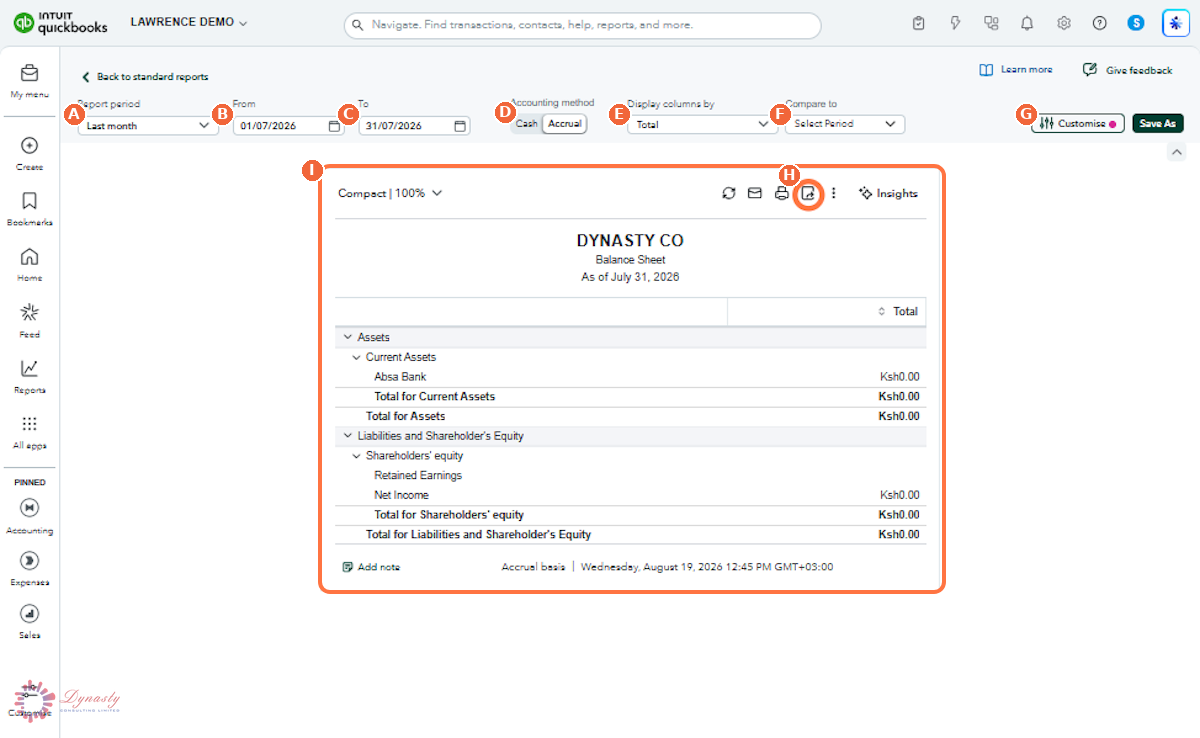
Figure – Setting the report options
How to View Reports in QuickBooks Online
Reports turn the transactions you have recorded into the financial picture of the business — the Balance Sheet, Profit and Loss, ageing summaries and dozens more. QuickBooks Online groups them into standard reports you can open, adjust for any period, and export or save for reuse.
Last Updated
Aug 19, 2026
Software
QuickBooks Online 2026
What You Will Learn
By the end of this guide you will be able to open the Reports centre, find and open a report, set its period and accounting method, and export or save the result.
Before You Begin
Reports read from the transactions already recorded, so finish entering and reconciling the period first. Anything unrecorded simply will not appear.
Tip
Star the reports you run every month. They move to the Favourites group at the top of the list, so the reports that matter are one click away instead of buried in the standard list.
Step 1 – Open the Reports Centre and Choose a Report
There are no comments for now.
to be the first to leave a comment.