How to Edit the Chart of Accounts in QuickBooks Online
How to Edit the Chart of Accounts in QuickBooks Online
Editing the Chart of Accounts lets you update an account’s name, type, detail type or description. Keeping these details accurate keeps your financial records organised and your reports reliable.
Step 1 – Open Settings
Click the Settings (gear) icon in the top-right corner of the navigation bar, next to the Help (?) icon.
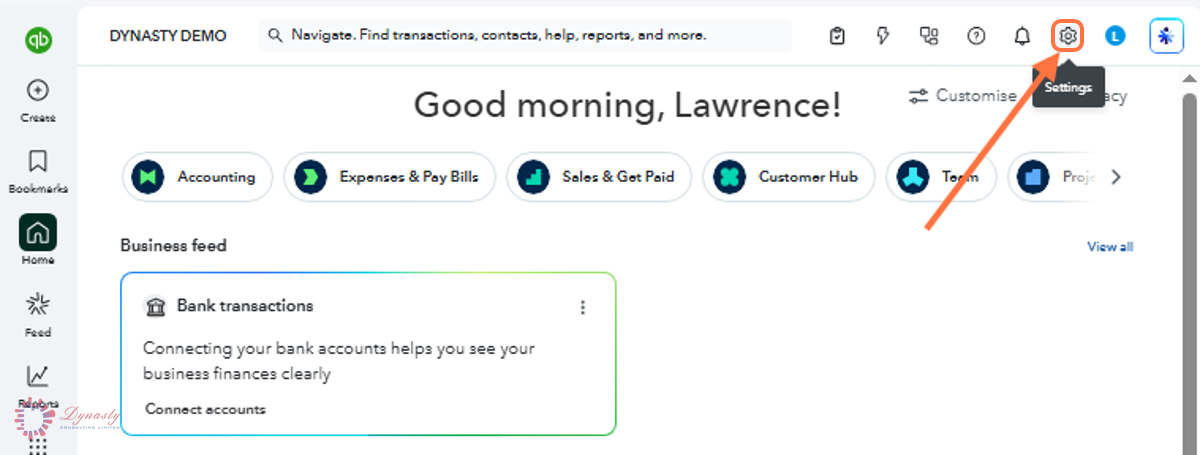
Figure – Opening Settings
Step 2 – Open the Chart of Accounts
In the Settings menu, select Chart of accounts under the YOUR COMPANY section.
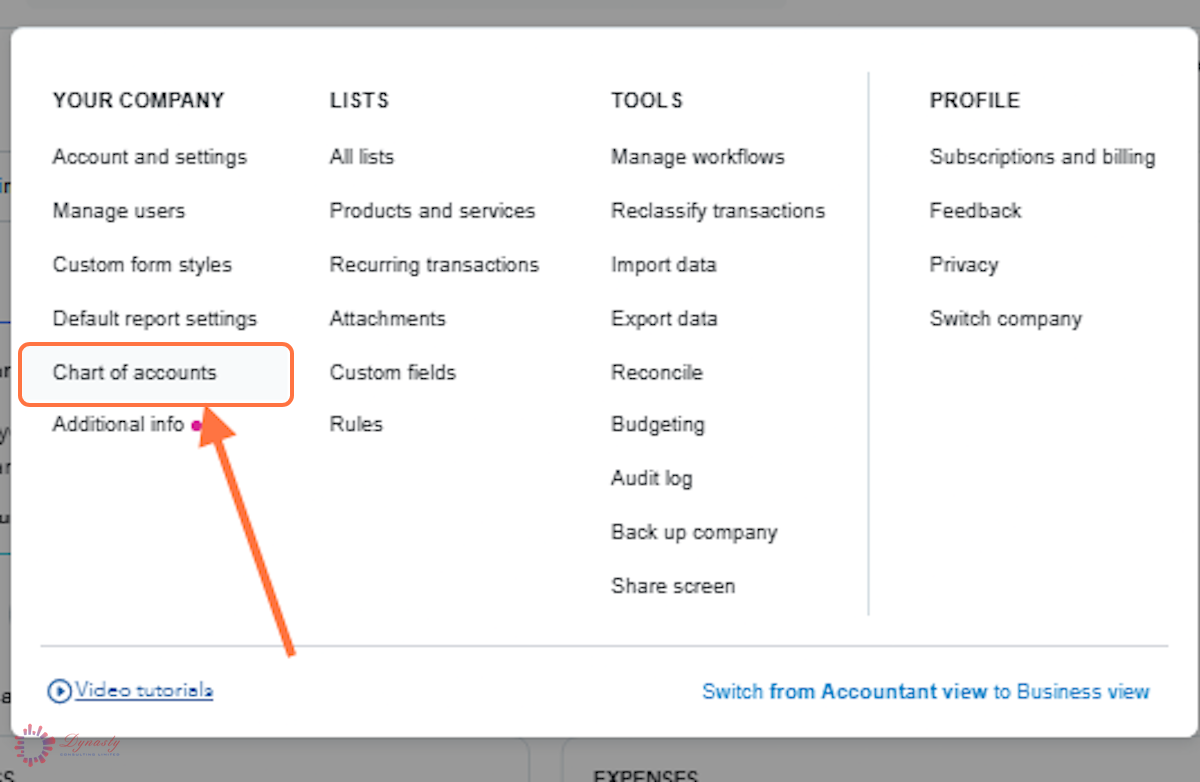
Figure – Opening the Chart of Accounts
Step 3 – Open the Account for Editing
A Select the account – Find the account to change in the list — filter by name or number if the list is long.
B Drop-down arrow – Click the arrow at the far right of the row, under the ACTION column, next to Account history or Run report.
C Edit – Choose Edit from the menu that opens.
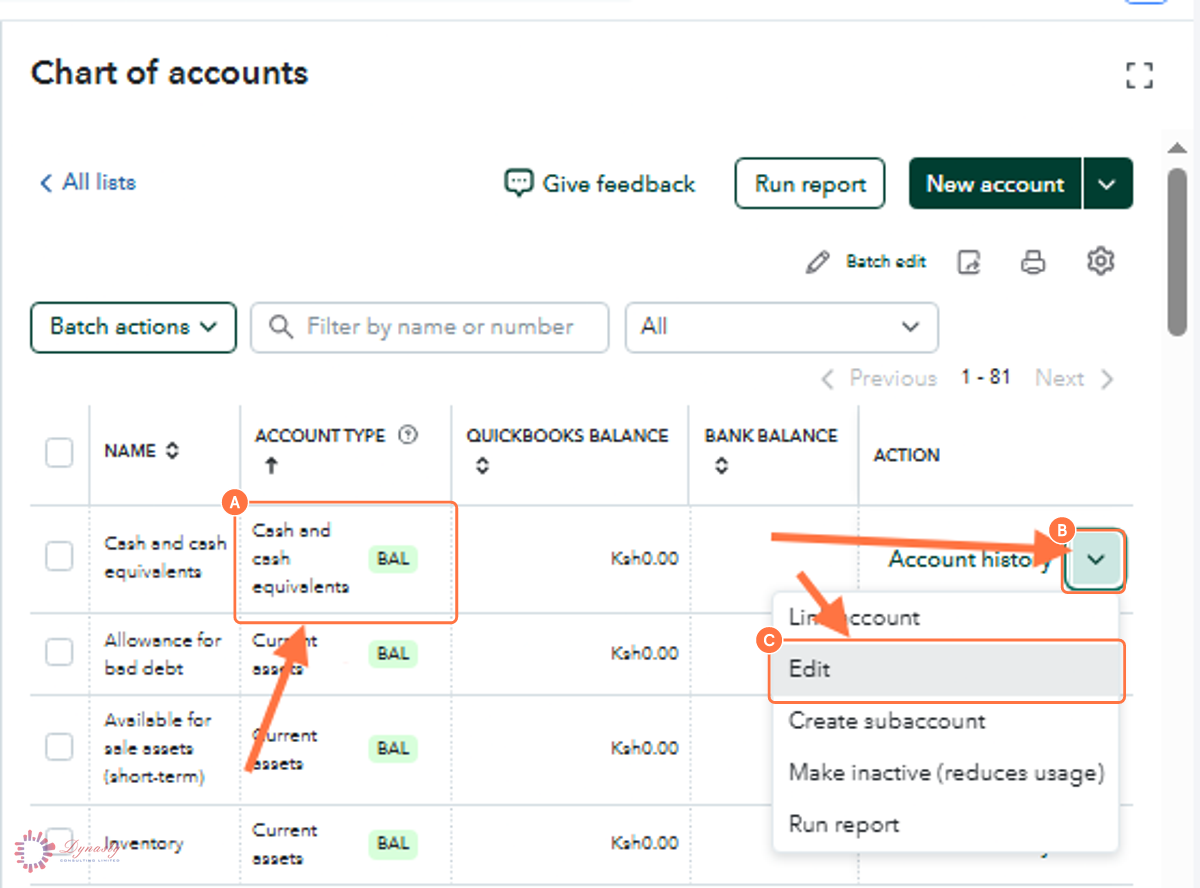
Figure – Opening the Edit option
Step 4 – Update the Details and Save
A Account name – Update the name shown throughout QuickBooks and on reports.
B Account type – Change the major category only if the account was set up wrongly — it moves the account to a different financial statement section.
C Detail type – Update the sub-category that describes the account.
D Description – Optional note giving internal context about the account.
E Save – Click Save to apply the changes.
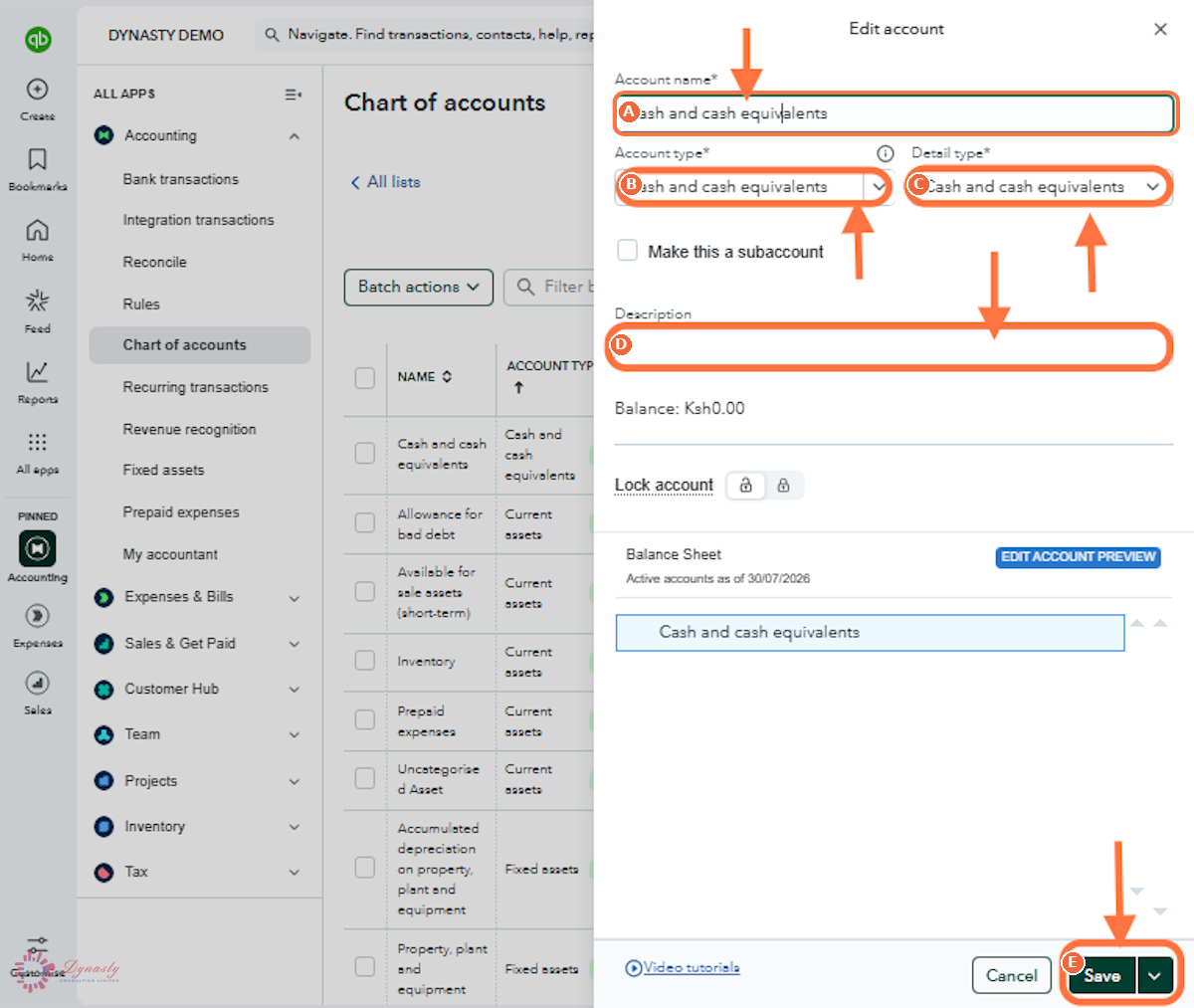
Figure – Updating the account details
How to Edit the Chart of Accounts in QuickBooks Online
Editing the Chart of Accounts lets you update an account’s name, type, detail type or description. Keeping these details accurate keeps your financial records organised and your reports reliable.
Last Updated
Aug 19, 2026
Software
QuickBooks Online 2026
What You Will Learn
By the end of this guide you will be able to find an account in the Chart of Accounts, open it for editing, and update its details safely.
Before You Begin
You need administrator or accountant access. Take care when changing the account type of an account that already has transactions — it moves those balances to a different section of your reports.
Tip
Rename rather than re-create. Editing an account keeps its full transaction history; creating a replacement account splits the history across two accounts.
Step 1 – Open Settings
There are no comments for now.
to be the first to leave a comment.