How to Edit Service Items in QuickBooks Online
How to Edit Service Items in QuickBooks Online
Editing a service item lets you update its name, description, pricing, income account and purchasing information so your records stay accurate. Changes apply to future transactions while the history of existing transactions is preserved.
Step 1 – Open Settings
Click the Settings (gear) icon in the upper-right corner of QuickBooks Online, just to the right of the search bar.
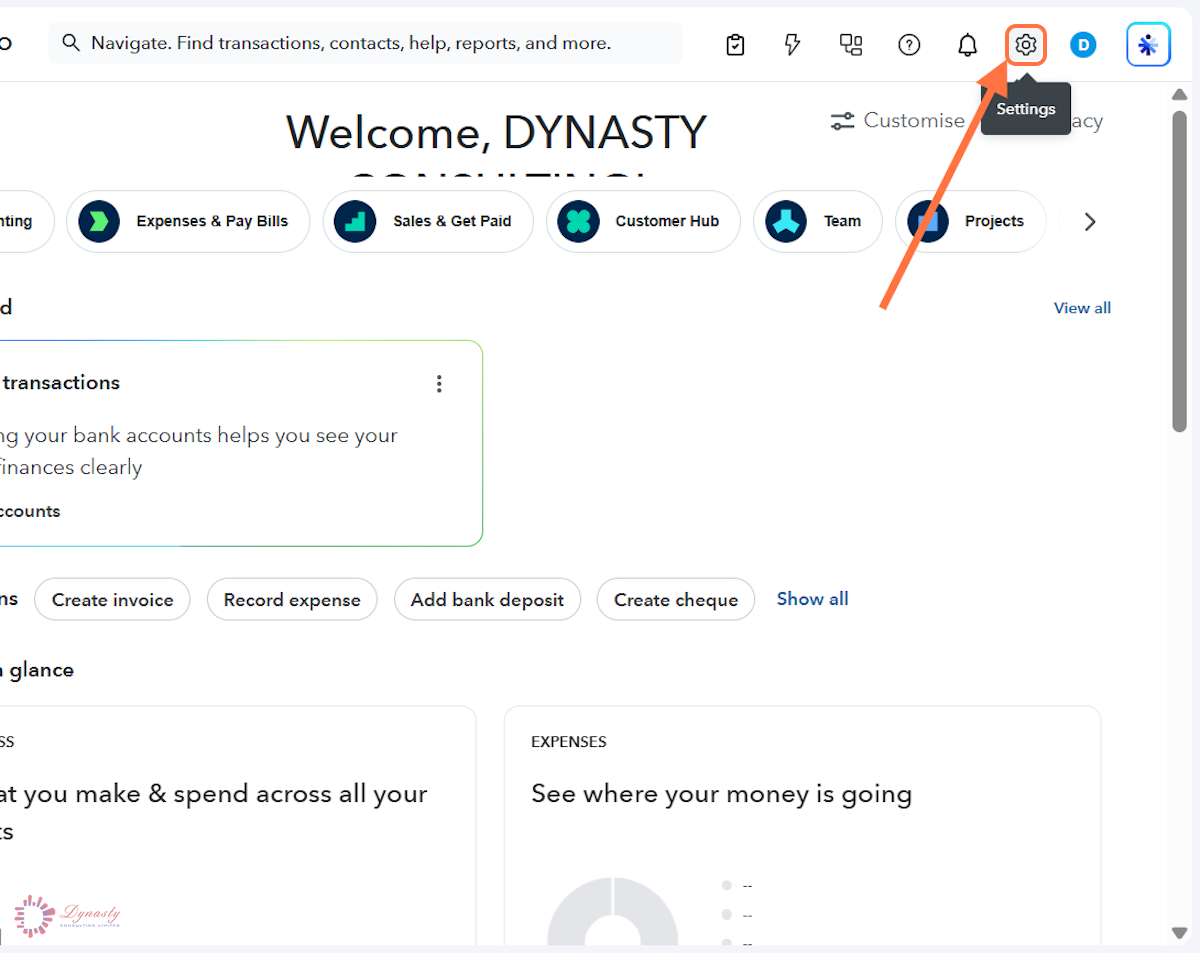
Figure – Opening Settings
Step 2 – Open Products & Services
In the Settings menu, select Products and services under the LISTS section. The Products & Services page opens, where you can view, create, edit and manage every product, service and bundle in the list.
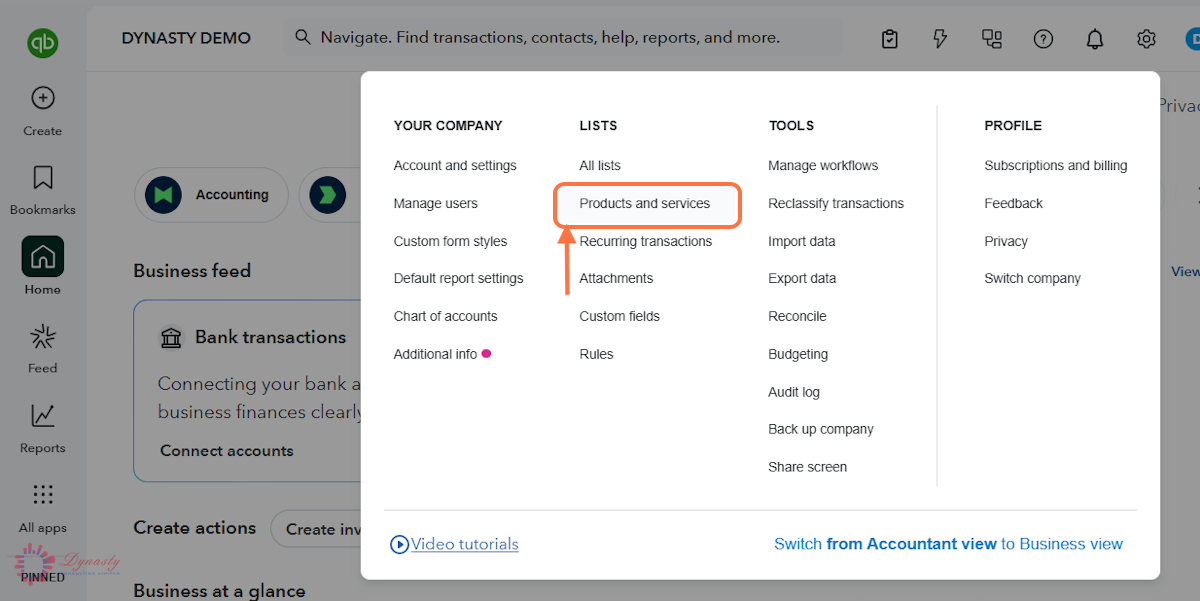
Figure – Opening Products & Services
Step 3 – Open the Service for Editing
A The service item – Locate the service you want to update — search by name, SKU or category if the list is long.
B Edit – Click Edit in the ACTIONS column on the service’s row.
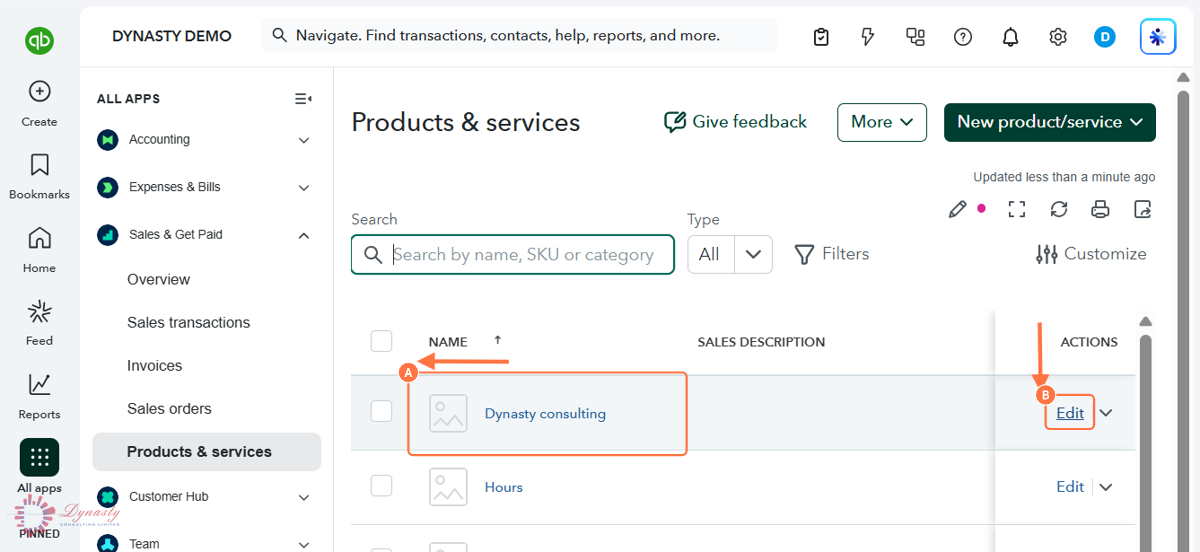
Figure – Opening the service for editing
Step 4 – Update the Basic Information
A Name – Enter the correct name for the service.
B Item type – Confirm the item type is still correct.
C SKU – Enter or update the SKU if your business uses identification codes.
D Category – Select the appropriate category to keep the service organised in the list.
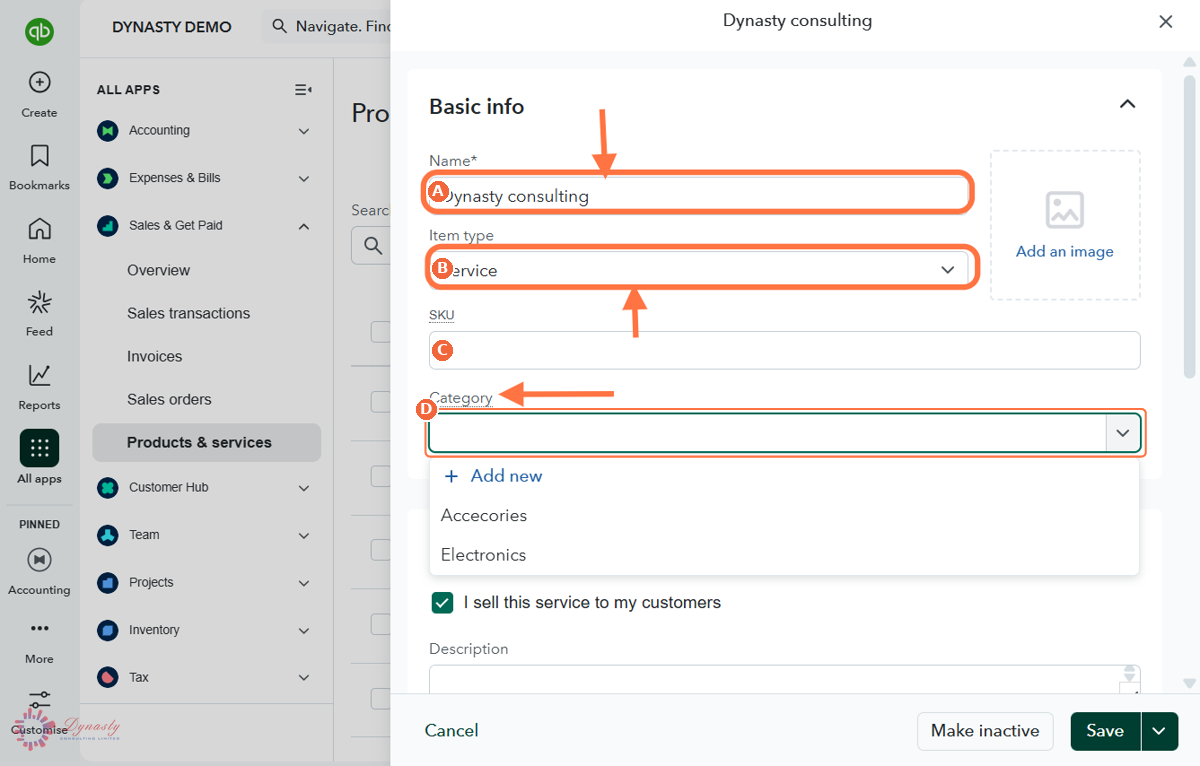
Figure – Updating the basic information
Step 5 – Update the Sales and Purchasing Information and Save
A Description – Update the description shown on sales forms so customers understand the service provided.
B Price/rate – Enter the updated amount charged — it fills in automatically on future sales.
C Income account – Choose the account where the service’s revenue is recorded.
D Purchase description – The description used on purchase transactions when you buy this service in.
E Purchase cost – The default cost when the service is purchased from a supplier.
F Preferred supplier – The supplier you normally buy the service from.
G Expense account – The account where the cost of the service is recorded.
H Save – Click Save to apply the changes. Future transactions use the new details; existing transactions keep their history.
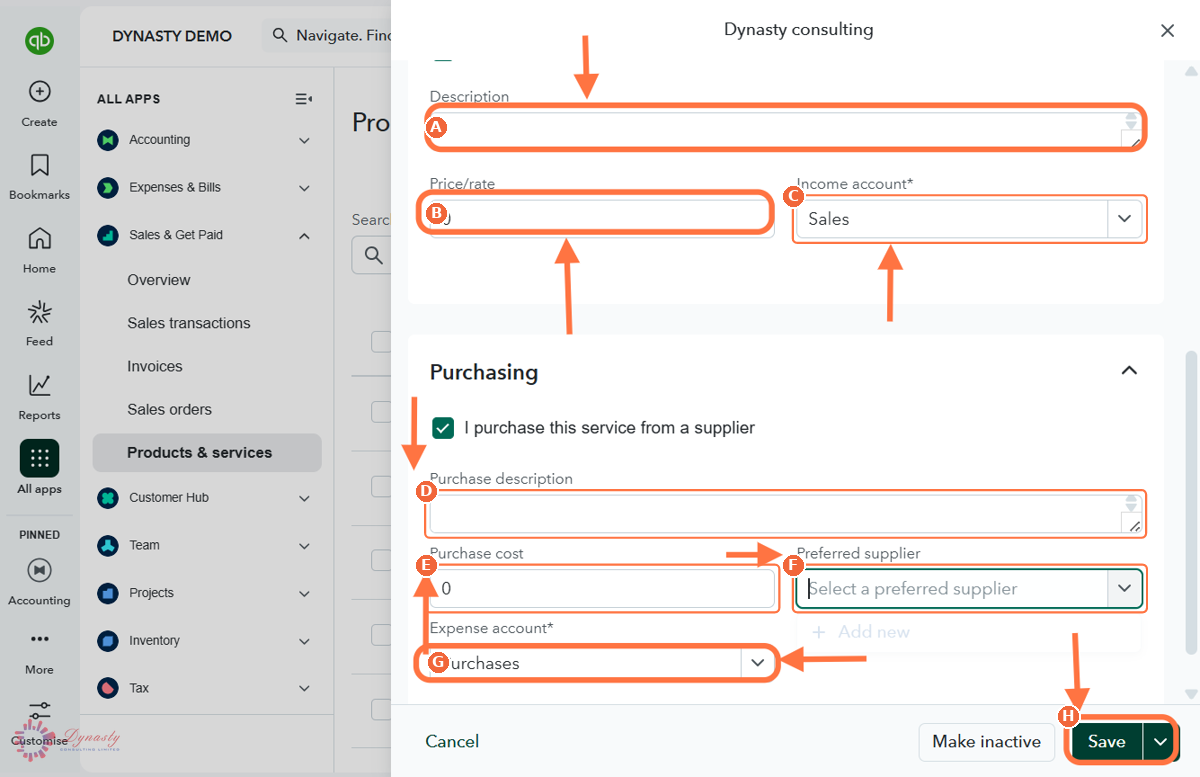
Figure – Updating the sales and purchasing information
How to Edit Service Items in QuickBooks Online
Editing a service item lets you update its name, description, pricing, income account and purchasing information so your records stay accurate. Changes apply to future transactions while the history of existing transactions is preserved.
Last Updated
Aug 19, 2026
Software
QuickBooks Online 2026
What You Will Learn
By the end of this guide you will be able to find a service item in Products & Services, open it for editing, and update its basic, sales and purchasing information.
Before You Begin
You need permission to manage products and services. Changes apply to future transactions only — the history of existing transactions is preserved.
Tip
If you buy the service in as well as sell it, complete the Purchasing section too — supplier bills then pick up the right description, cost and expense account automatically.
Step 1 – Open Settings
There are no comments for now.
to be the first to leave a comment.