How to Merge Accounts in the Chart of Accounts — QuickBooks Online
How to Merge Accounts in the Chart of Accounts — QuickBooks Online
Merging combines two accounts into one. In QuickBooks Online you merge by editing the secondary account (the duplicate you no longer want) so its name, account type and detail type match the primary account (the one you are keeping) word for word. QuickBooks then moves all transactions into the primary account and makes the duplicate inactive.
Step 1 – Open Settings
Click the Settings (gear) icon in the top-right corner of the navigation bar, next to the Help (?) icon.
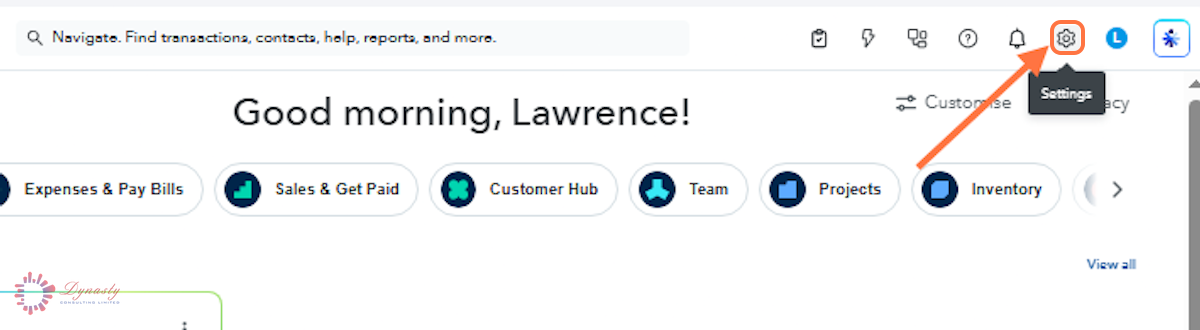
Figure – Opening Settings
Step 2 – Open the Chart of Accounts
In the Settings menu, select Chart of accounts under the YOUR COMPANY section.
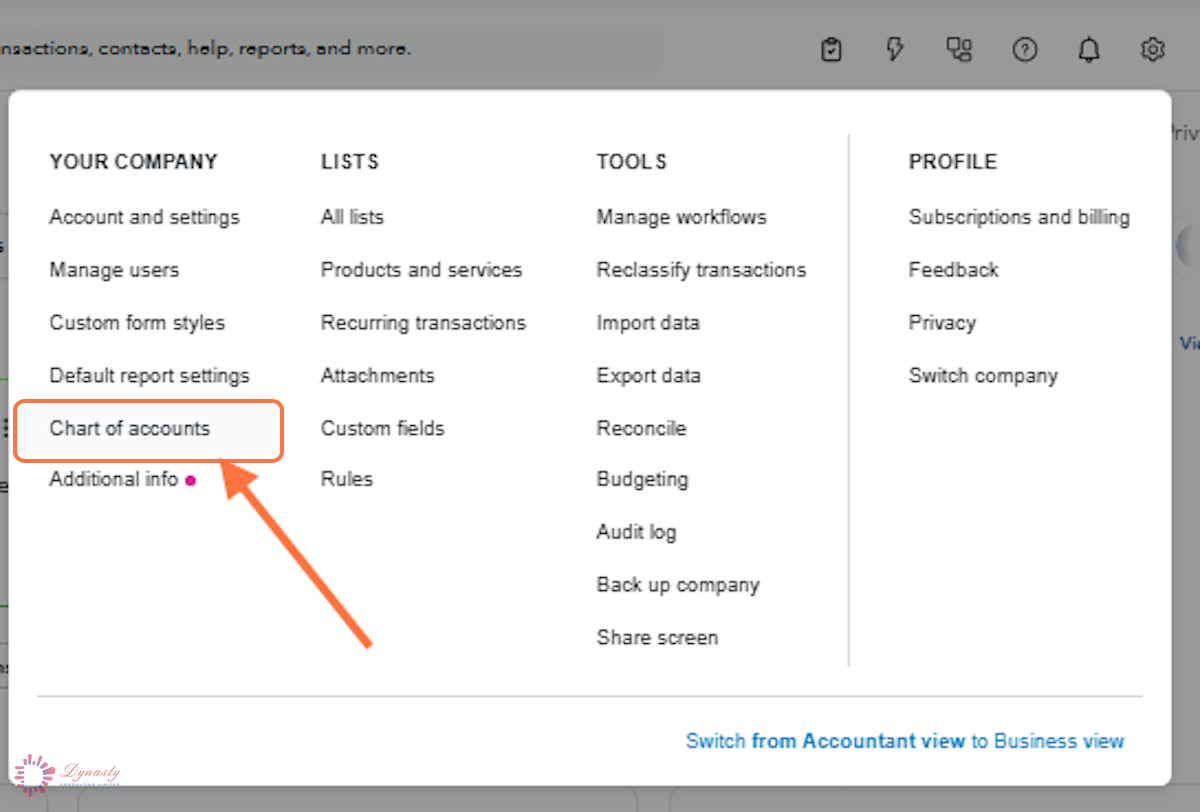
Figure – Opening the Chart of Accounts
Step 3 – Identify the Accounts and Open the Secondary for Editing
A Primary account – The account you are keeping — in this example, Accounting fee.
B Secondary account – The duplicate you want to merge away — here, Accounting fee 1.
C Drop-down arrow – Click the arrow at the end of the secondary account’s row, under the ACTION column.
D Edit – Choose Edit to open the secondary account.
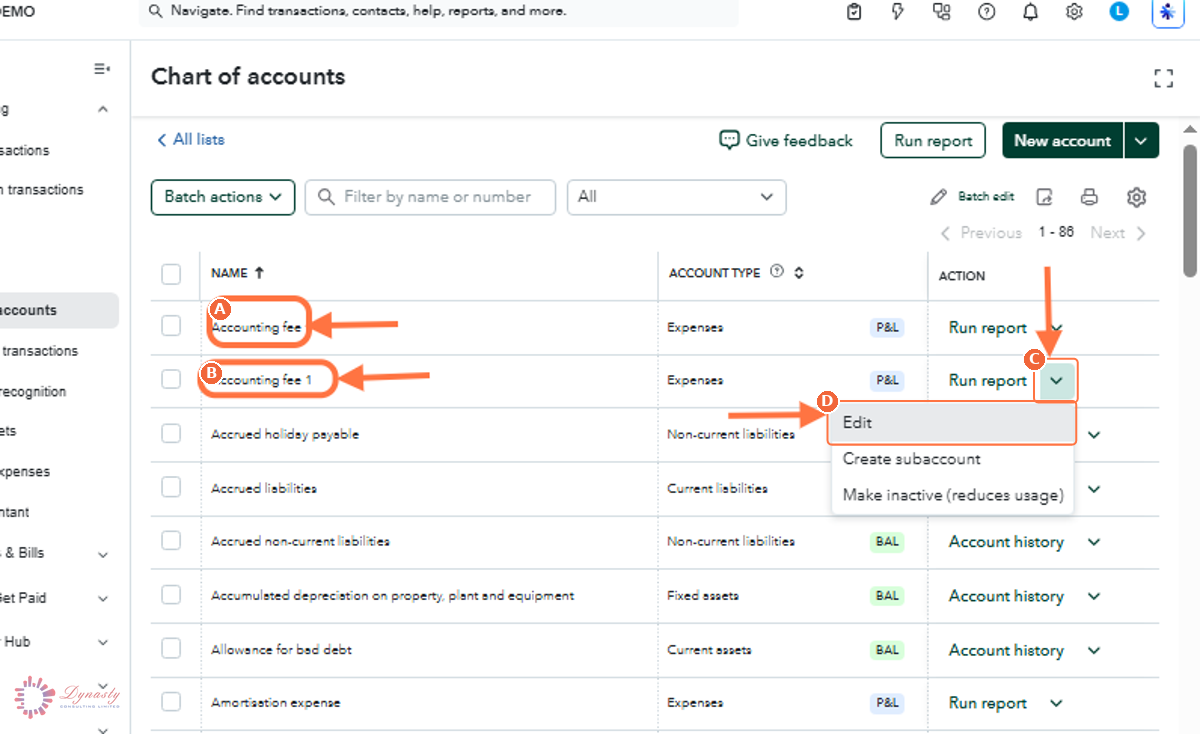
Figure – Opening the secondary account
Step 4 – Match the Details to the Primary Account and Save
A Account name – Type the primary account’s name exactly, word for word — here the name changes from Accounting fee 1 to Accounting fee.
B Account type – Set it to the same type as the primary account.
C Detail type – Set it to the same detail type as the primary account.
D Description – Update the description if you keep one — it does not affect the merge.
E Save – Click Save. QuickBooks detects the duplicate name and asks you to confirm the merge.
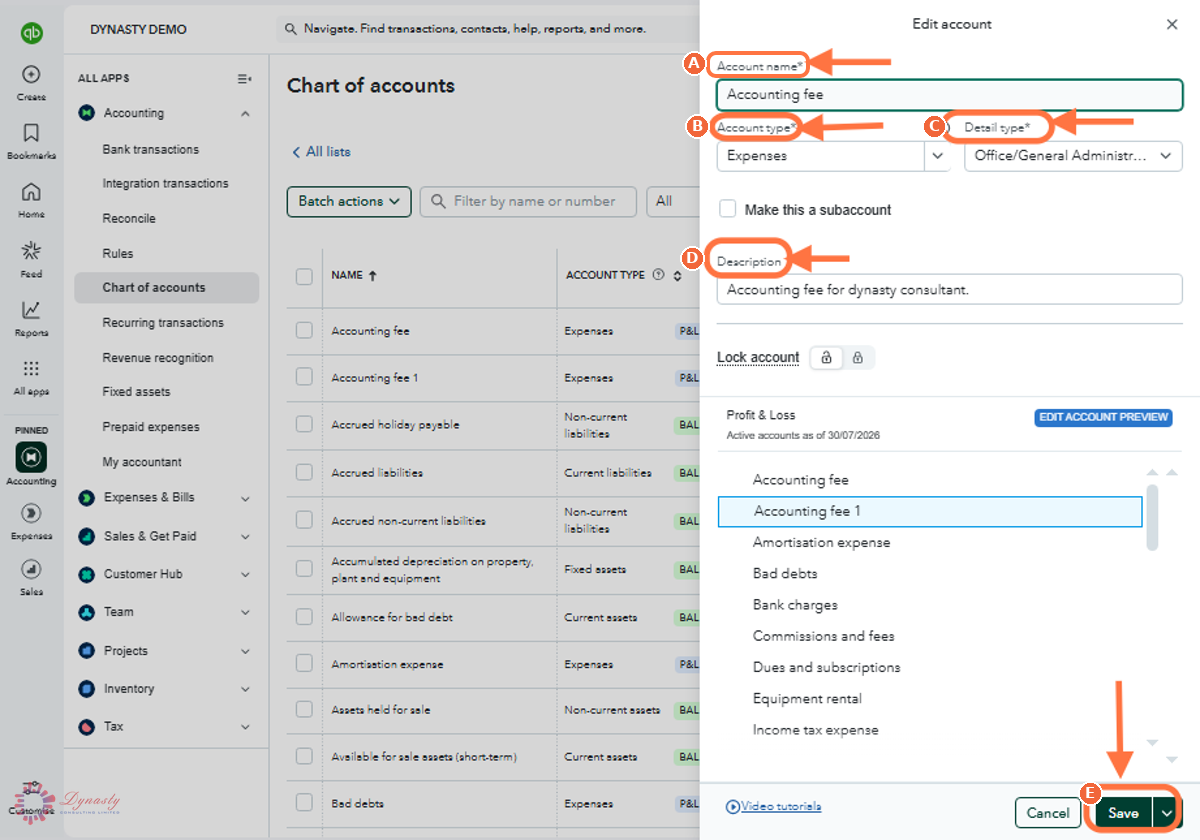
Figure – Matching the details and saving
How to Merge Accounts in the Chart of Accounts — QuickBooks Online
Merging combines two accounts into one. In QuickBooks Online you merge by editing the secondary account (the duplicate you no longer want) so its name, account type and detail type match the primary account (the one you are keeping) word for word. QuickBooks then moves all transactions into the primary account and makes the duplicate inactive.
Last Updated
Aug 19, 2026
Software
QuickBooks Online 2026
What You Will Learn
By the end of this guide you will be able to identify the primary and secondary accounts, edit the secondary account to match the primary exactly, and complete the merge.
Before You Begin
You need administrator or accountant access. Decide which account you are keeping (the primary) before you start, and note its exact name, account type and detail type — the merge only works when they match word for word.
Important
Merging cannot be undone. All transactions move into the primary account permanently, and the secondary account becomes inactive. Neither account should have sub-accounts attached when you merge.
Step 1 – Open Settings
There are no comments for now.
to be the first to leave a comment.