How to Create and Send an Estimate in QuickBooks Online
How to Create and Send an Estimate in QuickBooks Online
An estimate is a non-posting transaction that gives a customer a quote for products or services before work begins. It communicates expected costs clearly and can be converted into an invoice once the customer accepts — nothing posts to your accounts until then.
Step 1 – Open a New Estimate
A Create (+) – Click the Create button at the top of the left navigation bar to open the transaction menu.
B Estimate – Select Estimate under the Customers column to open a new estimate form.
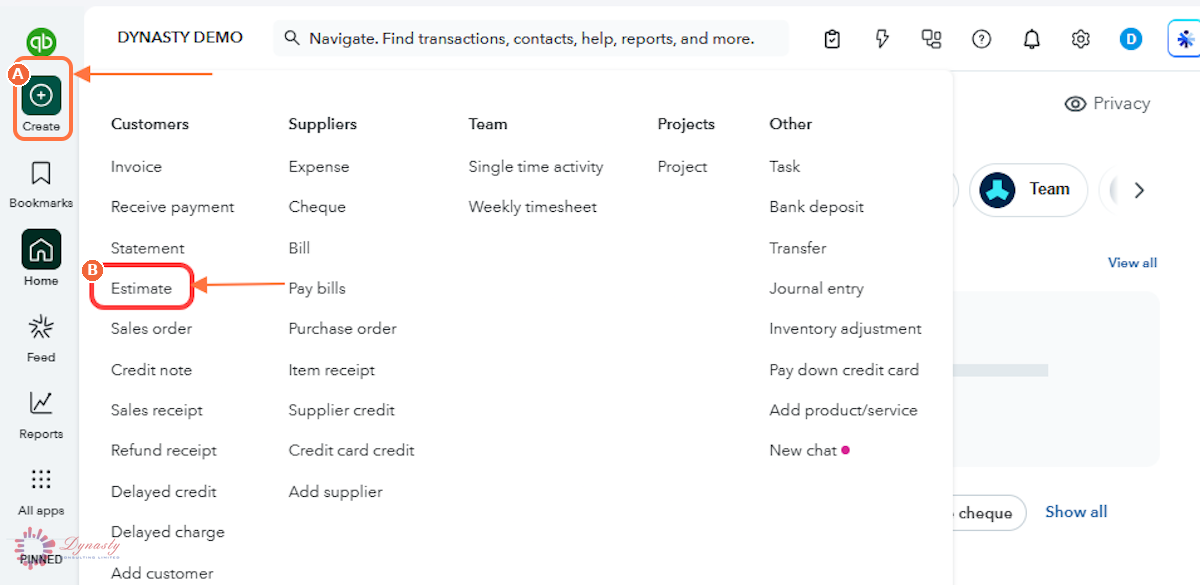
Figure – Opening a new estimate
Step 2 – Add the Products or Services Being Quoted
A Product/service – Select the item being quoted from the drop-down list.
B Description – A clear description of what is included, so the customer understands exactly what the quote covers.
C Qty – The number of units or hours being estimated.
D Rate – The price per unit or hourly rate.
E Amount – The line total — QuickBooks calculates it automatically as quantity multiplied by rate.
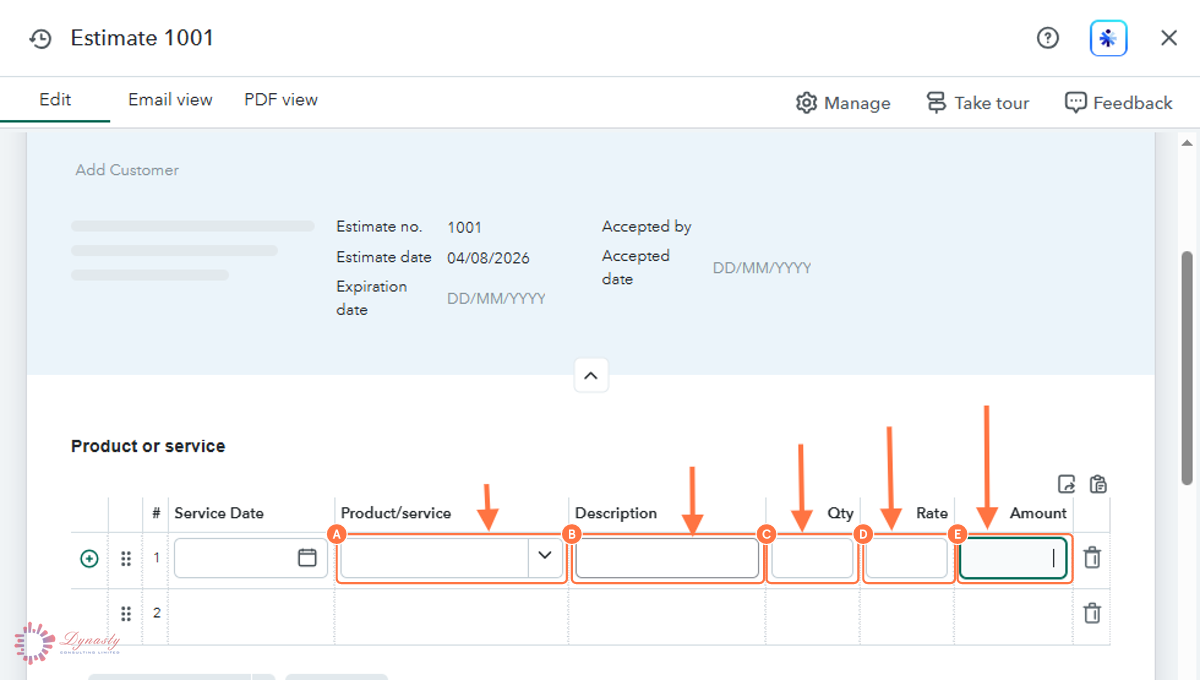
Figure – Adding the quoted items
Step 3 – Complete the Estimate Details and Send
The Expiration date field below the estimate date sets how long the quote remains valid — fill it in before sending.
A Add Customer – Choose the customer receiving the estimate, or add a new one from the same list.
B Estimate no. – QuickBooks numbers the estimate automatically; change it if you use your own numbering.
C Estimate date – The date the estimate is created.
D Accepted by – Completed once the customer approves — the name of the person who accepted the quote.
E Accepted date – The date the customer accepted the estimate.
F Save – Saves the estimate to finish later.
G Review and send – Opens a preview and emails the quote to the customer.
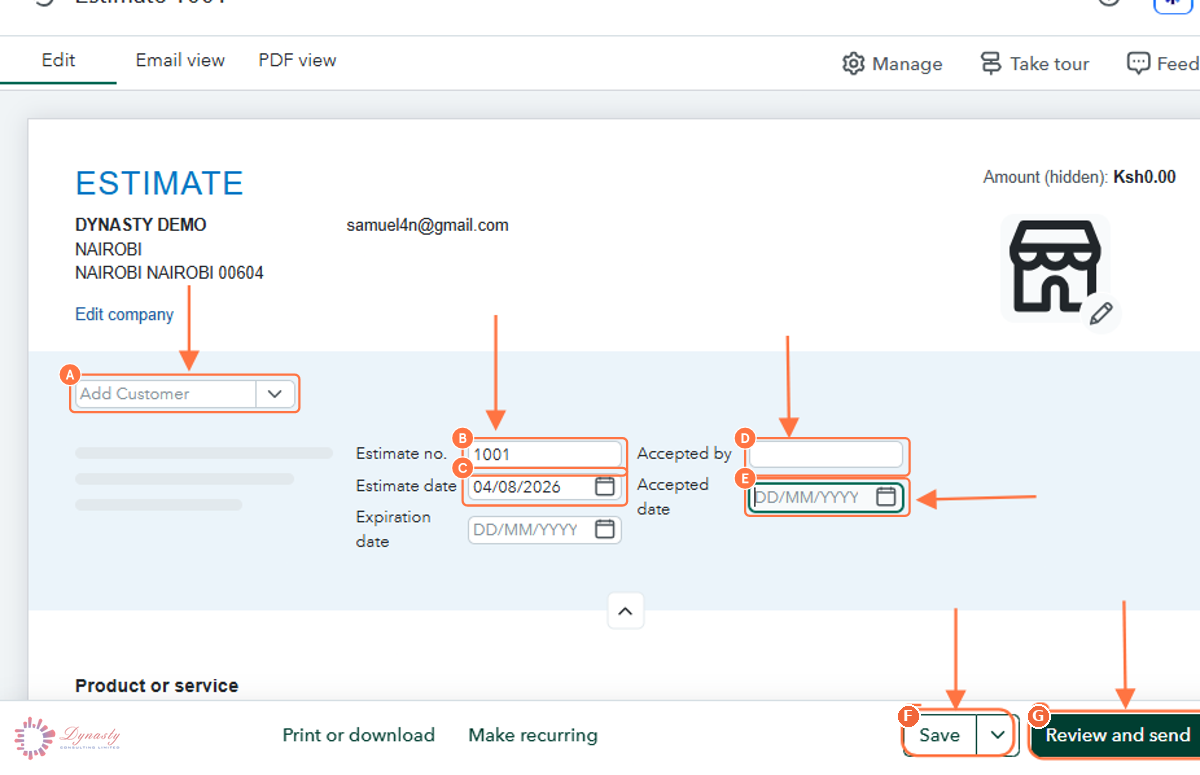
Figure – Completing the estimate details
How to Create and Send an Estimate in QuickBooks Online
An estimate is a non-posting transaction that gives a customer a quote for products or services before work begins. It communicates expected costs clearly and can be converted into an invoice once the customer accepts — nothing posts to your accounts until then.
Last Updated
Aug 19, 2026
Software
QuickBooks Online 2026
What You Will Learn
By the end of this guide you will be able to open a new estimate, add the products or services being quoted, complete the customer and estimate details, and save or send the quote.
Before You Begin
You need the products or services you are quoting already set up in the Products & Services list. The customer can be added on the estimate itself if they are new.
Tip
Set an expiration date on every estimate. It protects your pricing and gives the customer a clear deadline to accept.
Step 1 – Open a New Estimate
There are no comments for now.
to be the first to leave a comment.