How to Make an Item Inactive — Service in QuickBooks Online
How to Make an Item Inactive — Service in QuickBooks Online
Making a service inactive removes it from the active Products & Services list while preserving its transaction history. An inactive service can no longer be selected on new transactions unless it is restored.
Step 1 – Open Settings
Click the Settings (gear) icon in the upper-right corner of QuickBooks Online, just to the right of the search bar.
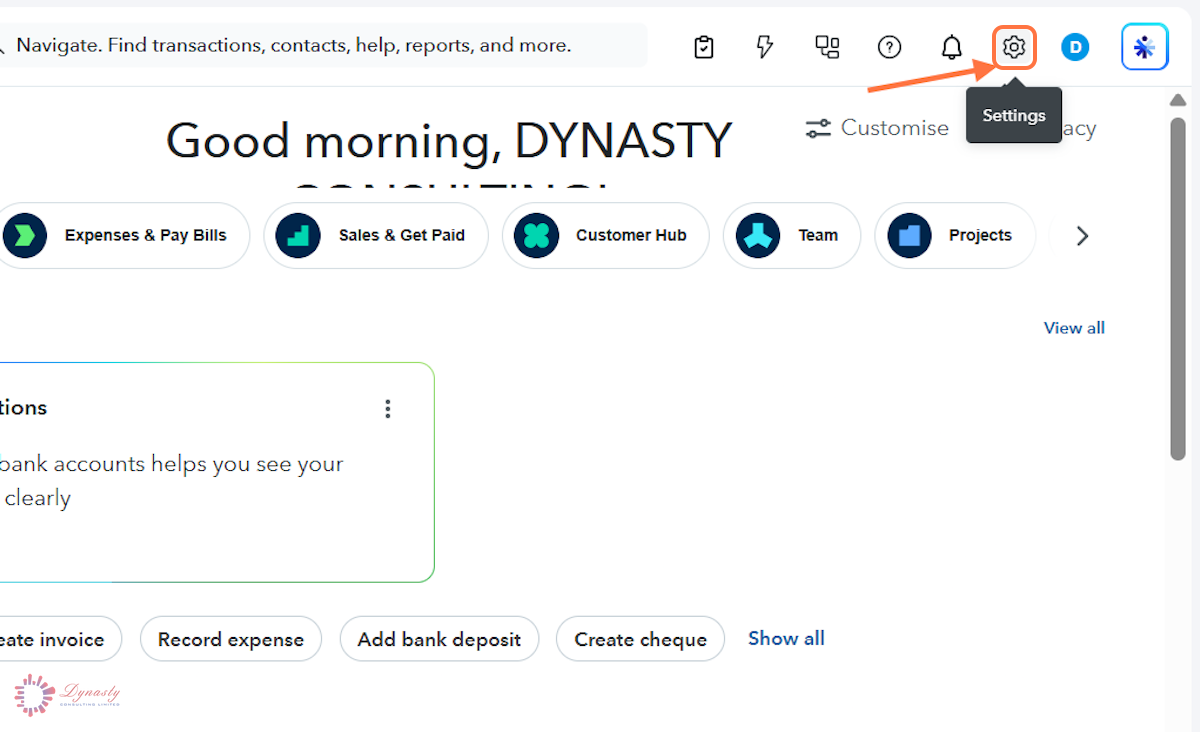
Figure – Opening Settings
Step 2 – Open Products & Services
In the Settings menu, select Products and services under the LISTS section. The Products & Services page opens, where you can view, create, edit and manage items, including making them inactive or restoring them.
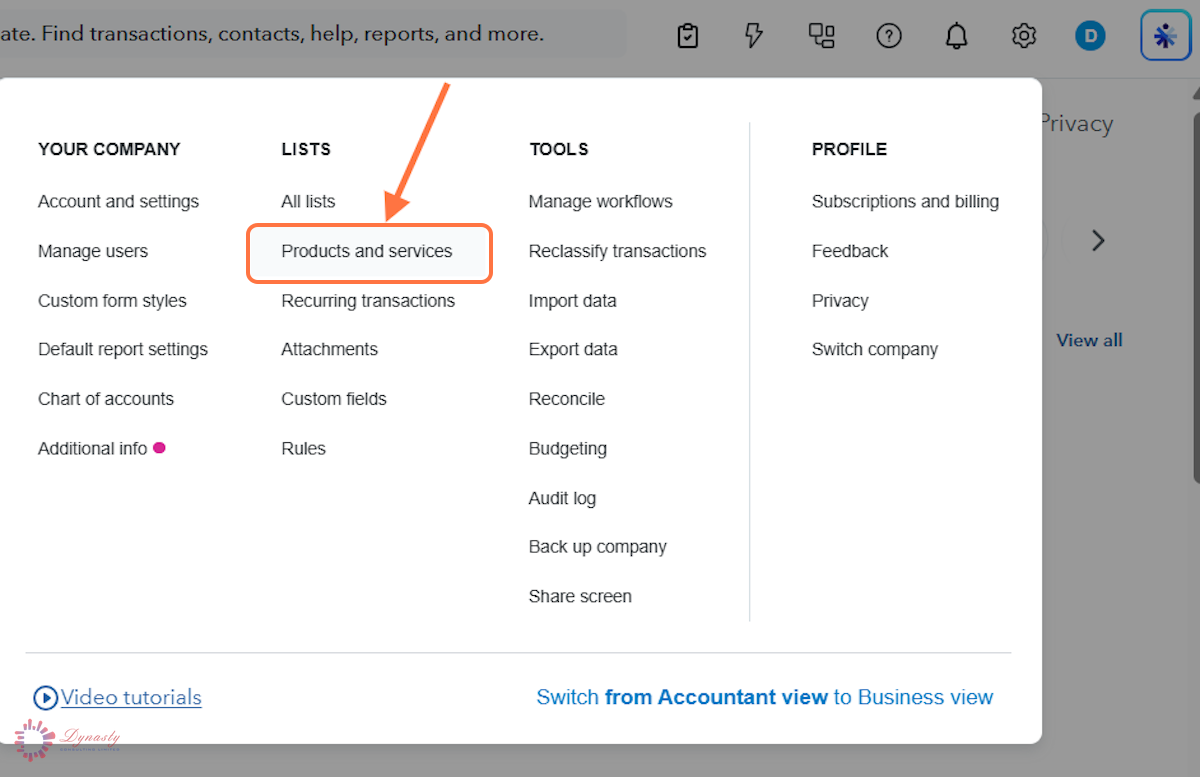
Figure – Opening Products & Services
Step 3 – Choose Make Inactive
A Drop-down arrow – Locate the service to deactivate and click the arrow next to Edit in the ACTIONS column.
B Make inactive – Select Make inactive from the menu.
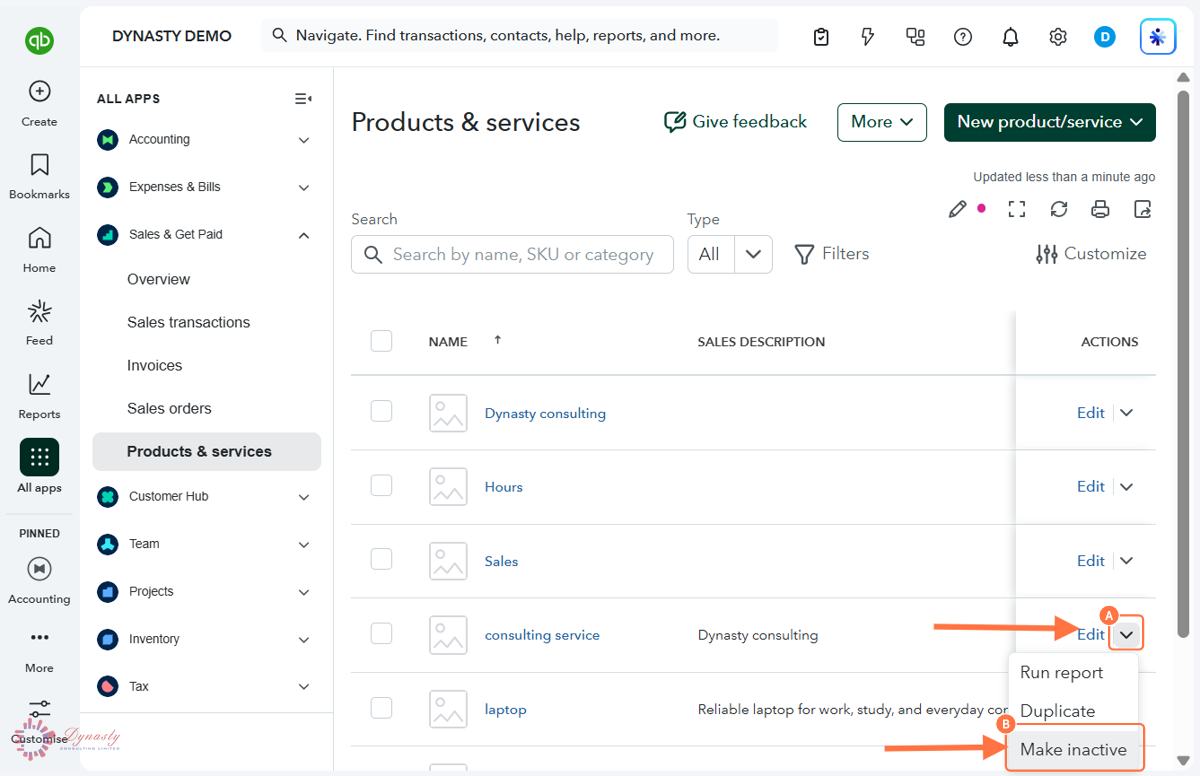
Figure – Choosing Make inactive
Step 4 – Confirm the Change
QuickBooks explains what happens: the item can no longer be edited on past invoices, bills or refunds, and it is marked as deleted but can be activated again for new transactions. Click Make inactive to confirm.
The service disappears from the active Products & Services list but remains in your company records and can be restored later if needed.
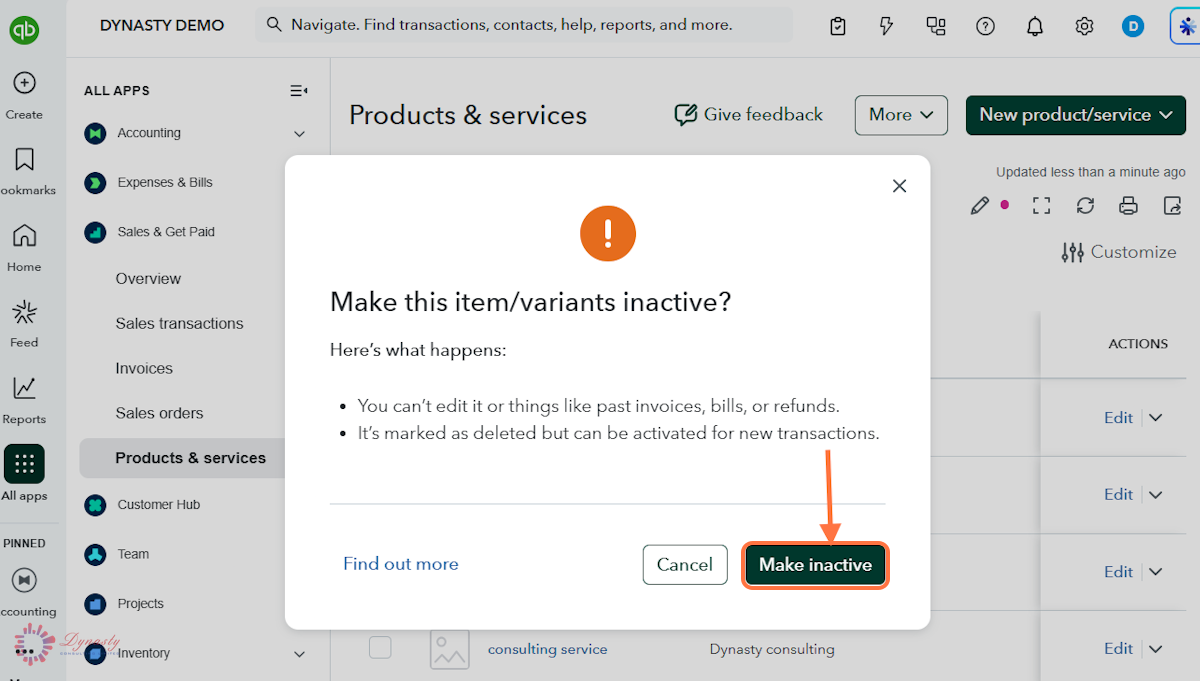
Figure – Confirming the change
How to Make an Item Inactive — Service in QuickBooks Online
Making a service inactive removes it from the active Products & Services list while preserving its transaction history. An inactive service can no longer be selected on new transactions unless it is restored.
Last Updated
Aug 19, 2026
Software
QuickBooks Online 2026
What You Will Learn
By the end of this guide you will be able to find a service in Products & Services, make it inactive, and confirm the change.
Before You Begin
You need permission to manage products and services. Inactivating does not delete the item — its transaction history is preserved and it can be restored later.
Tip
Inactivate rather than rename retired services. The history stays intact, the active list stays clean, and the item can be restored at any time if you offer the service again.
Step 1 – Open Settings
There are no comments for now.
to be the first to leave a comment.