How to Create a Sales Receipt in QuickBooks Online
How to Create a Sales Receipt in QuickBooks Online
A sales receipt records a sale and its payment in one transaction — the customer pays at the point of sale, so no invoice or accounts receivable entry is needed. QuickBooks records the income and deposits the money to the account you choose in a single step.
Step 1 – Open a New Sales Receipt
A Create (+) – Click the Create button at the top of the left navigation bar to open the transaction menu.
B Sales receipt – Select Sales receipt under the Customers column.
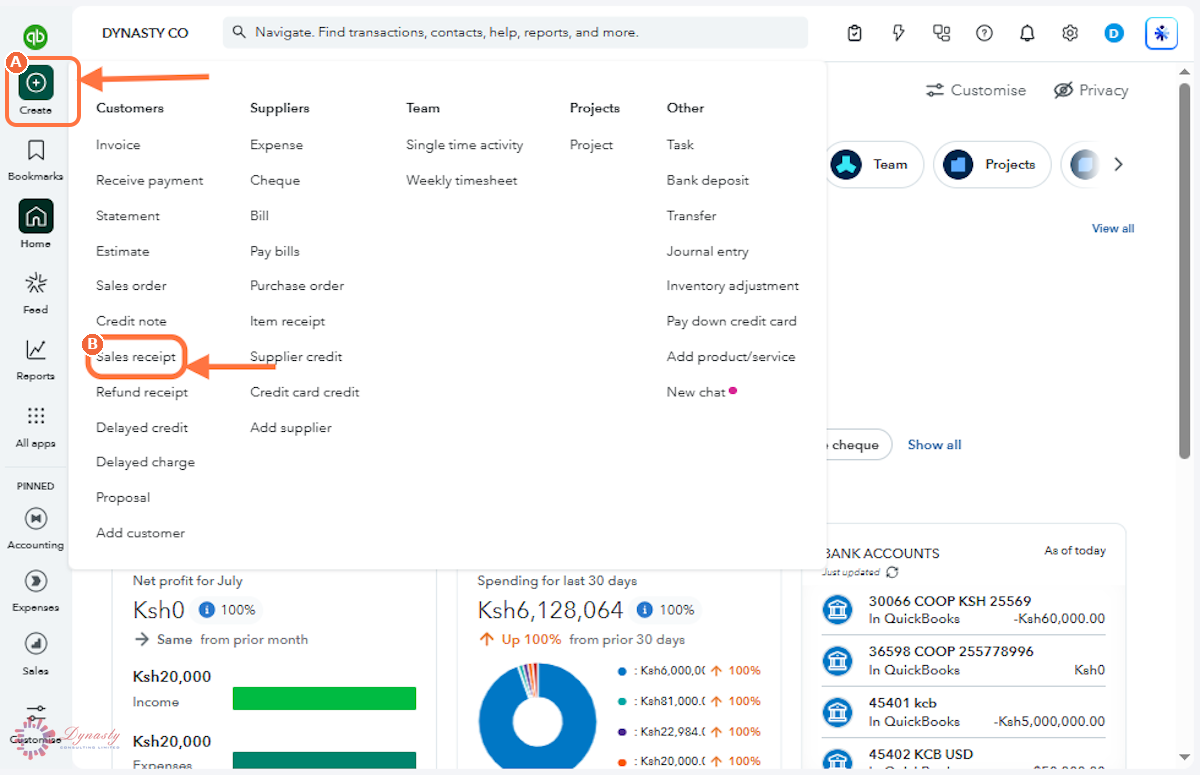
Figure – Opening a new sales receipt
Step 2 – Complete the Receipt Details and Save
A Customer – Select the customer who made the purchase.
B Sales Receipt Date – Enter or confirm the date of the sale.
C Payment method – How the customer paid — cash, cheque, card or transfer.
D Reference no. – An optional reference, such as a cheque or transaction number, to identify the payment.
E Deposit To – The account where the money is recorded — a bank account, or Undeposited Funds if you deposit takings in batches.
F Product/service – Select the item sold. It sets the income account and default price for the line.
G Description – A brief description of the item, shown on the receipt.
H Qty – The number of units sold.
I Rate – The unit price.
J Amount – The calculated line total — review it before saving.
K Save and close – Records the sale and the payment together and closes the form.
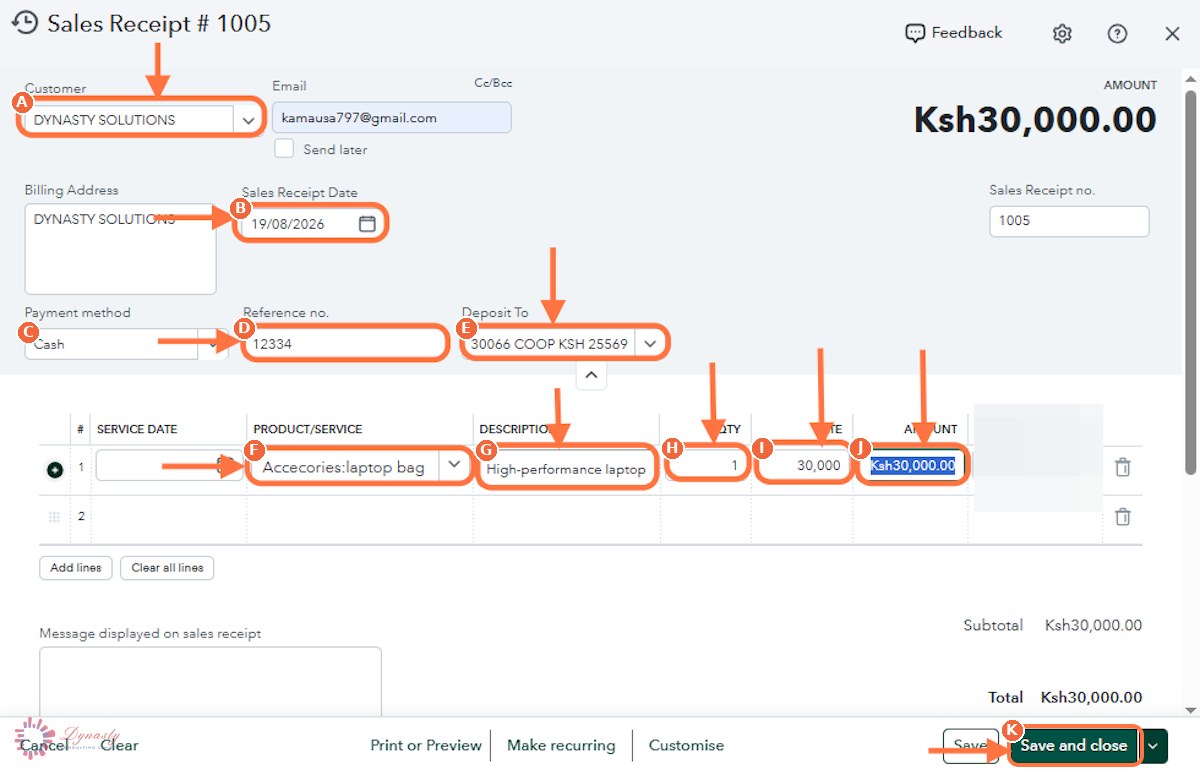
Figure – Completing the sales receipt
How to Create a Sales Receipt in QuickBooks Online
A sales receipt records a sale and its payment in one transaction — the customer pays at the point of sale, so no invoice or accounts receivable entry is needed. QuickBooks records the income and deposits the money to the account you choose in a single step.
Last Updated
Aug 19, 2026
Software
QuickBooks Online 2026
What You Will Learn
By the end of this guide you will be able to open a new sales receipt, complete the customer, payment and deposit details, add the items sold, and save the receipt.
Before You Begin
Use a sales receipt when the customer pays at the time of sale. If you are billing for later payment, create an invoice instead. Have the deposit account ready in the Chart of Accounts.
Tip
Point Deposit To at the actual bank account (or Undeposited Funds if you bank takings in batches) — it is what makes bank reconciliation painless later.
Step 1 – Open a New Sales Receipt
There are no comments for now.
to be the first to leave a comment.