How to Create a Purchase Order in QuickBooks Online
How to Create a Purchase Order in QuickBooks Online
A purchase order (PO) is a document sent to a supplier requesting goods or services. It sets out the items, quantities, prices and delivery details, and lets you track what you have ordered before it becomes a bill or expense. A PO is non-posting — nothing hits your accounts until the goods are billed.
Step 1 – Open a New Purchase Order
A Create (+) – Click the Create button at the top of the left navigation bar to open the transaction menu.
B Purchase order – Select Purchase order under the Suppliers column.
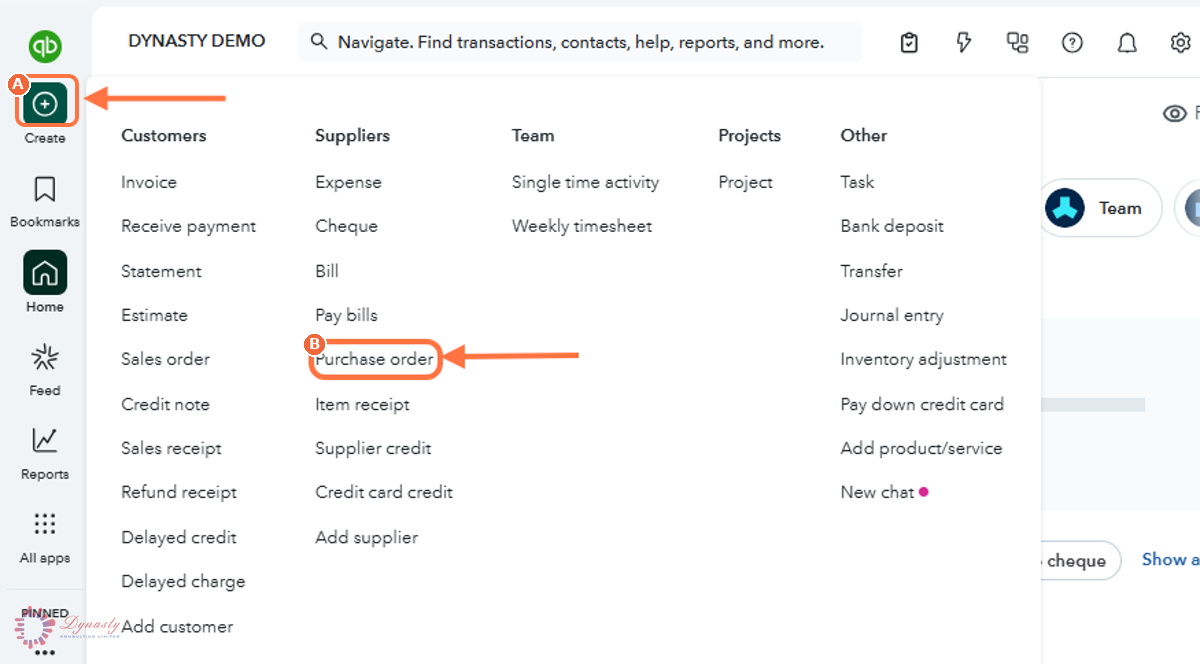
Figure – Opening a new purchase order
Step 2 – Complete the Purchase Order and Save
A Supplier – Choose the supplier from the drop-down list, or click Add New to create one. The PO status shows OPEN beneath.
B Purchase Order date – The date the order is created.
C Item details – Open this section to add the products or services being ordered.
D Product/Service – Select the item you want to purchase from the list.
E Description – Enter or review the description of the item being ordered.
F Qty – The quantity being ordered.
G Rate – The unit price agreed with the supplier.
H Amount – The line total — quantity multiplied by rate.
I Save and close – Stores the completed purchase order. Use the arrow beside it to Save and send it to the supplier by email.
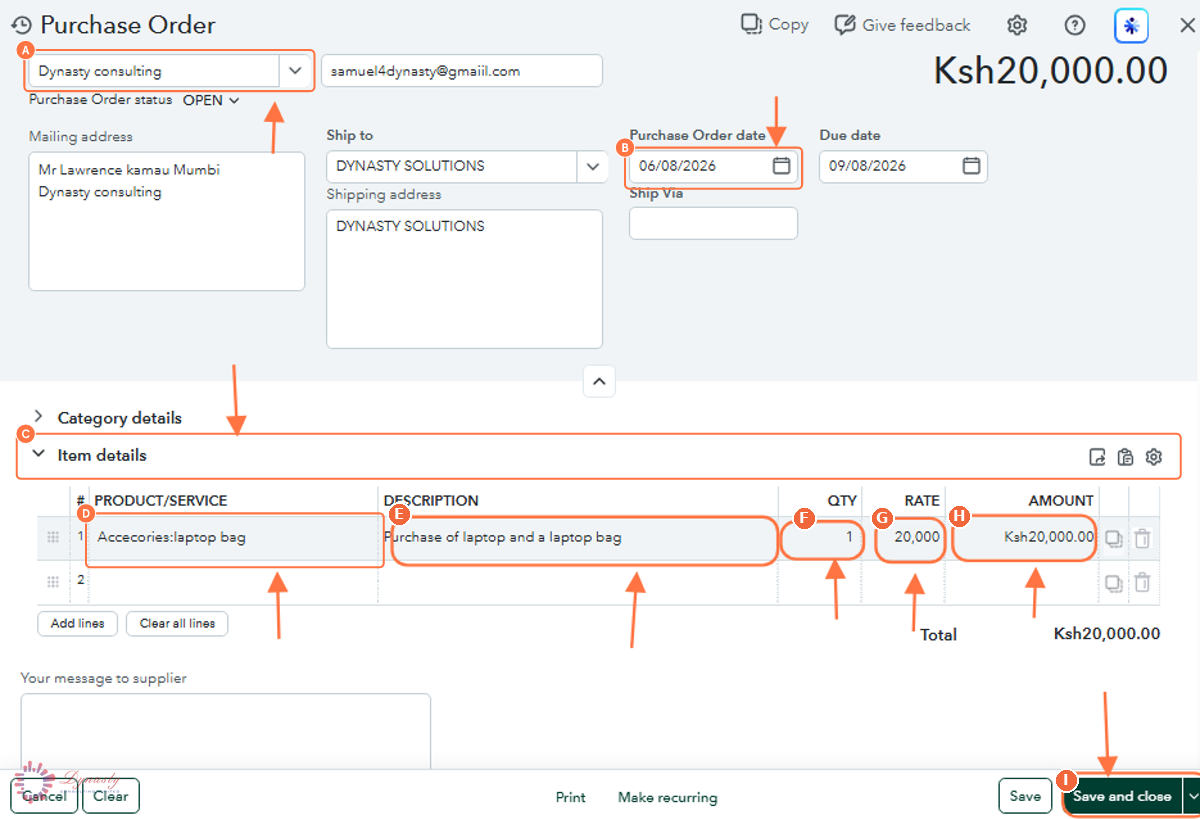
Figure – Completing the purchase order
How to Create a Purchase Order in QuickBooks Online
A purchase order (PO) is a document sent to a supplier requesting goods or services. It sets out the items, quantities, prices and delivery details, and lets you track what you have ordered before it becomes a bill or expense. A PO is non-posting — nothing hits your accounts until the goods are billed.
Last Updated
Aug 19, 2026
Software
QuickBooks Online 2026
What You Will Learn
By the end of this guide you will be able to open a new purchase order, complete the supplier and order details, add the items being ordered, and save the purchase order.
Before You Begin
Purchase orders must be enabled (Settings › Account and settings › Expenses › Purchase orders), and the supplier and items should already exist in QuickBooks Online.
Tip
When the goods arrive with a bill, open the supplier’s bill and add the PO from the panel on the right — QuickBooks copies the lines across and marks the purchase order closed.
Step 1 – Open a New Purchase Order
There are no comments for now.
to be the first to leave a comment.