How to Reactivate an Account in the Chart of Accounts — QuickBooks Online
How to Reactivate an Account in the Chart of Accounts — QuickBooks Online
Reactivating an account restores a previously inactive account so it can be used again for new transactions. While inactive, an account is hidden from your standard lists and cannot be selected on bills, invoices or expenses. Reactivating brings it back into your active workflow without losing any historical data.
Step 1 – Open Settings
Click the Settings (gear) icon in the top-right corner of the navigation bar, immediately to the right of the search bar.
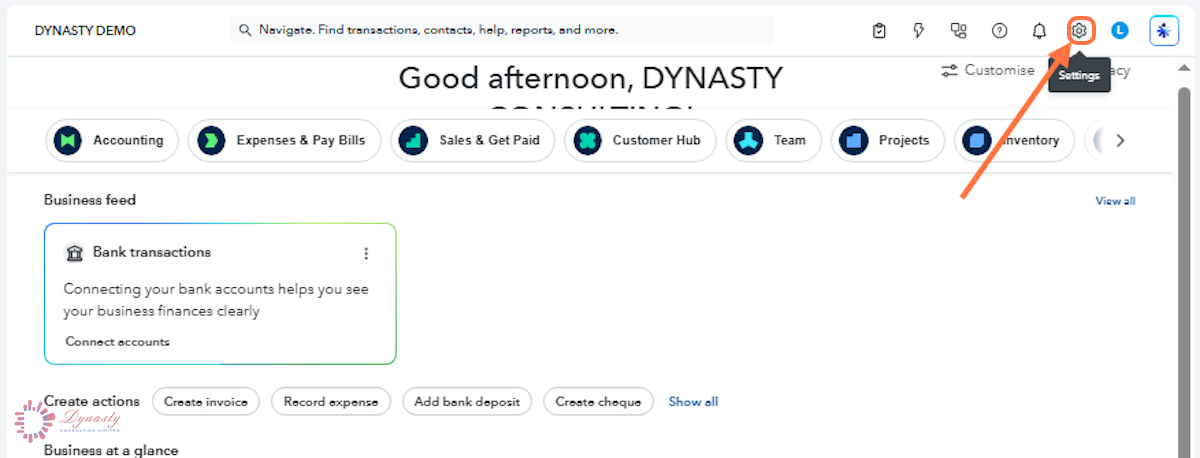
Figure – Opening Settings
Step 2 – Open the Chart of Accounts
In the Settings menu, select Chart of accounts under the YOUR COMPANY section.
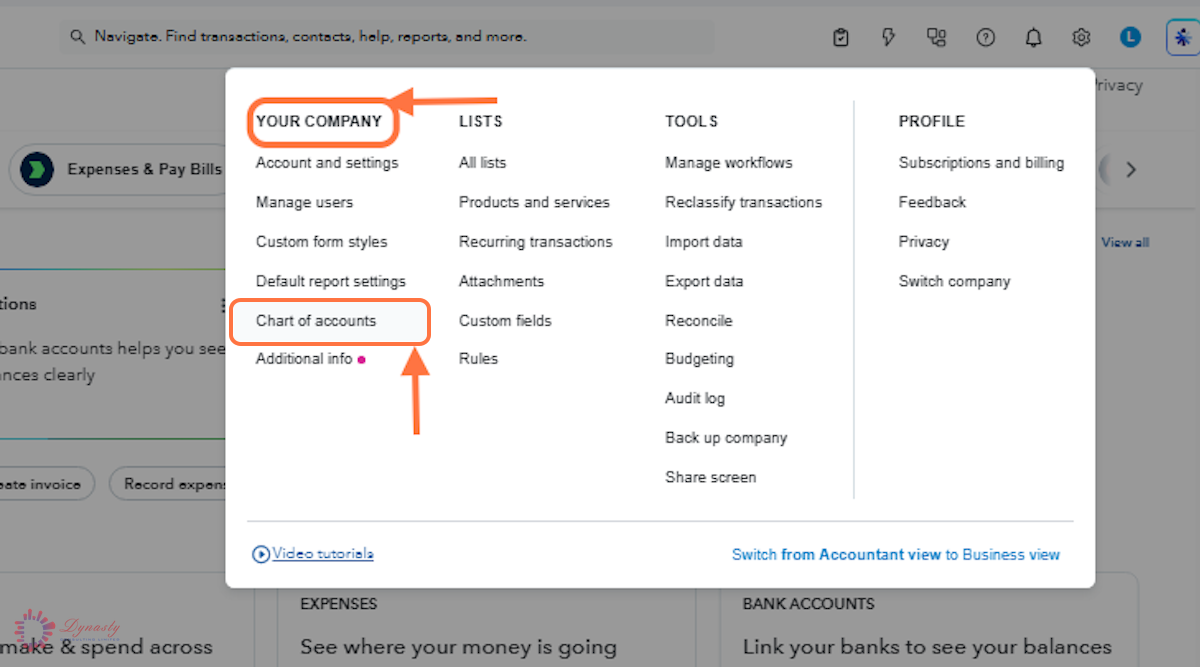
Figure – Opening the Chart of Accounts
Step 3 – Show Inactive Accounts
A Settings icon – Click the small gear above the account list, below the New account button.
B Show inactive accounts – Tick this option under Other so inactive accounts appear in the list.
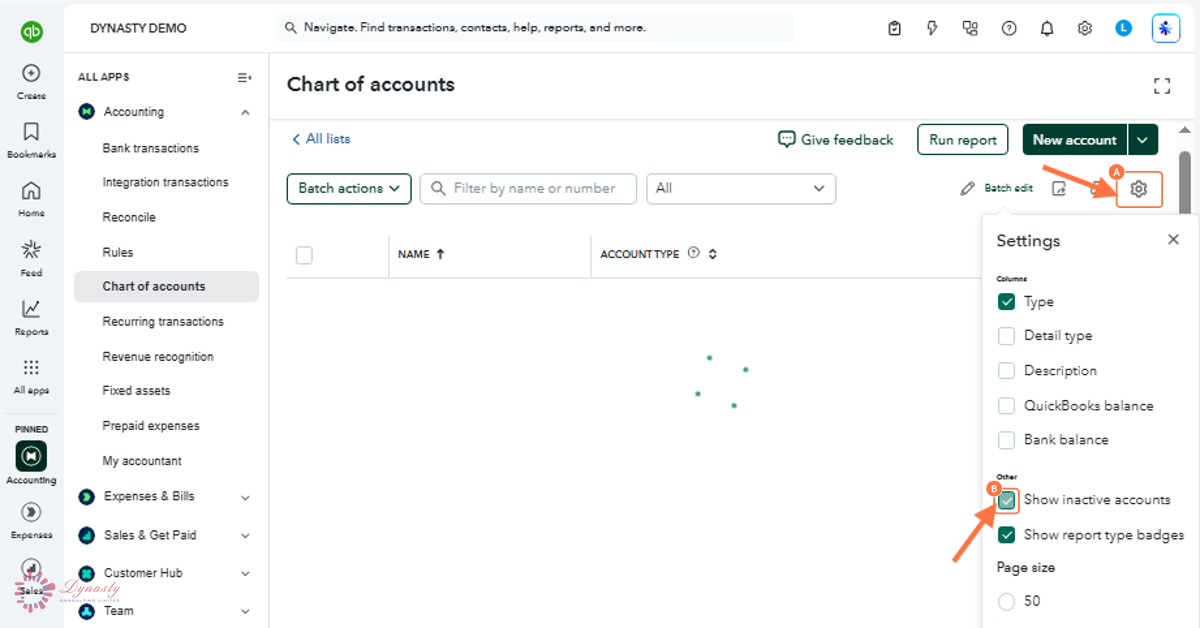
Figure – Showing inactive accounts
Step 4 – Make the Account Active
The account immediately returns to the active list and can be selected on transactions again, with its full history intact.
A The inactive account – Inactive accounts show "(deleted)" after their name — for example, Accounting fee (deleted).
B Make active – Click Make active in the ACTION column to restore the account.
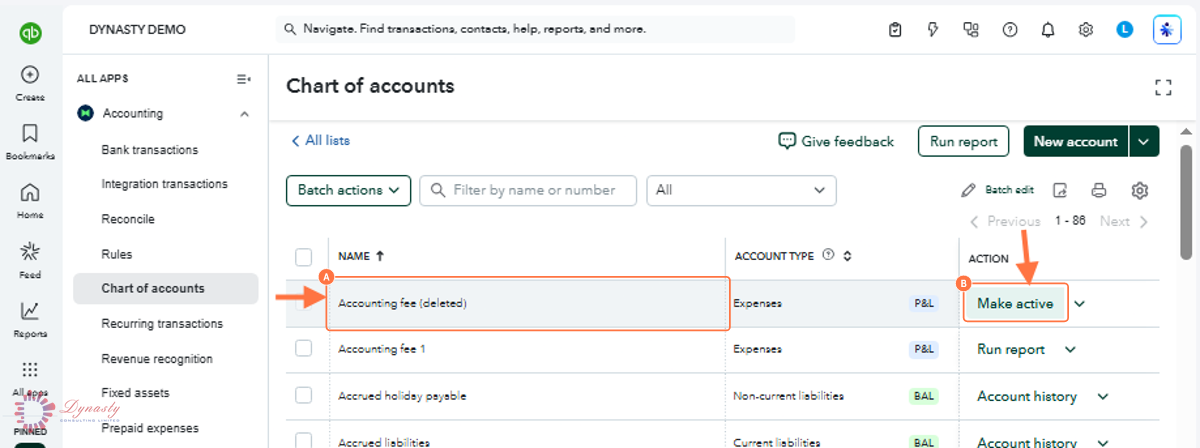
Figure – Making the account active
How to Reactivate an Account in the Chart of Accounts — QuickBooks Online
Reactivating an account restores a previously inactive account so it can be used again for new transactions. While inactive, an account is hidden from your standard lists and cannot be selected on bills, invoices or expenses. Reactivating brings it back into your active workflow without losing any historical data.
Last Updated
Aug 19, 2026
Software
QuickBooks Online 2026
What You Will Learn
By the end of this guide you will be able to show inactive accounts in the Chart of Accounts and make an inactive account active again.
Before You Begin
You need administrator or accountant access. Inactive accounts are hidden by default, so you will first switch on the option that shows them.
Tip
Inactive accounts appear in the list with "(deleted)" after their name. They are not actually deleted — the label only means they are hidden from active use.
Step 1 – Open Settings
There are no comments for now.
to be the first to leave a comment.