How to Add Users in QuickBooks Online
How to Add Users in QuickBooks Online
QuickBooks Online allows administrators to add users and assign each of them a role. This lets employees, accountants and other authorised people work in the company file with only the access their responsibilities require.
Step 1 – Open Settings
Click the Settings (gear) icon in the top-right corner of the QuickBooks Online dashboard to open the settings menu.
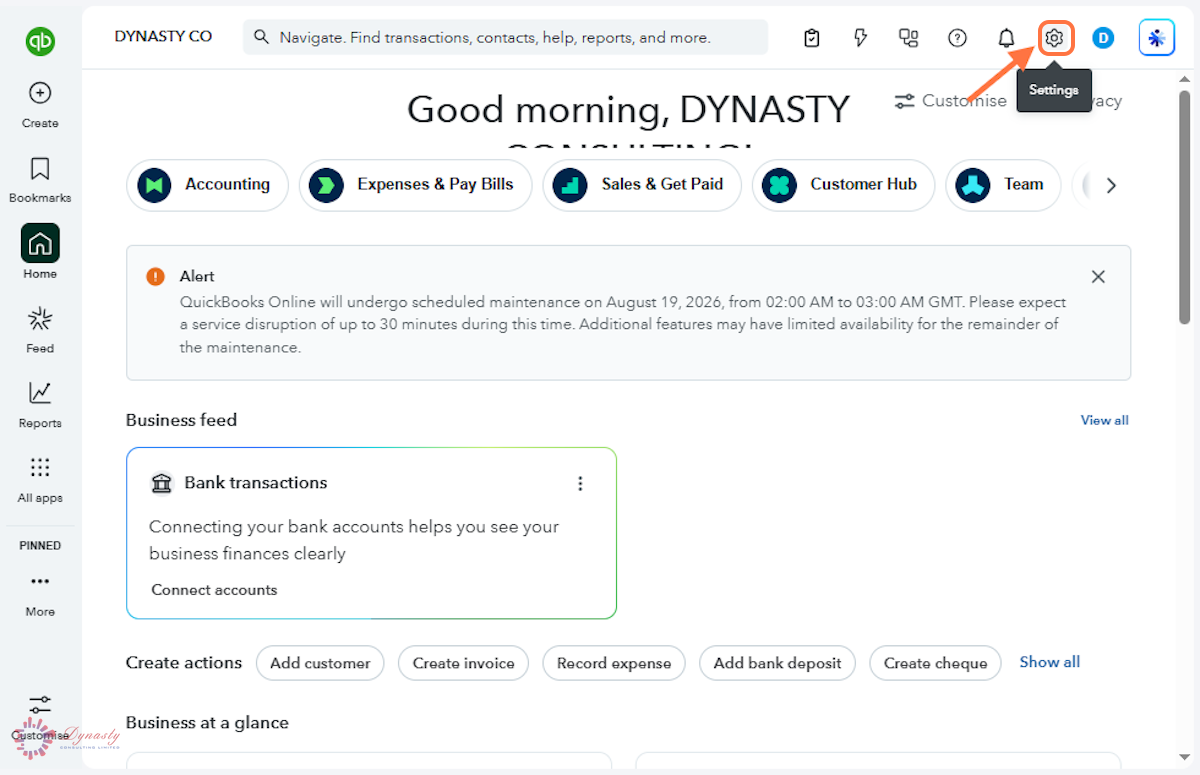
Figure – Opening Settings
Step 2 – Open Manage Users
Select Manage users under YOUR COMPANY. This section shows existing users, their roles and their invitation status.
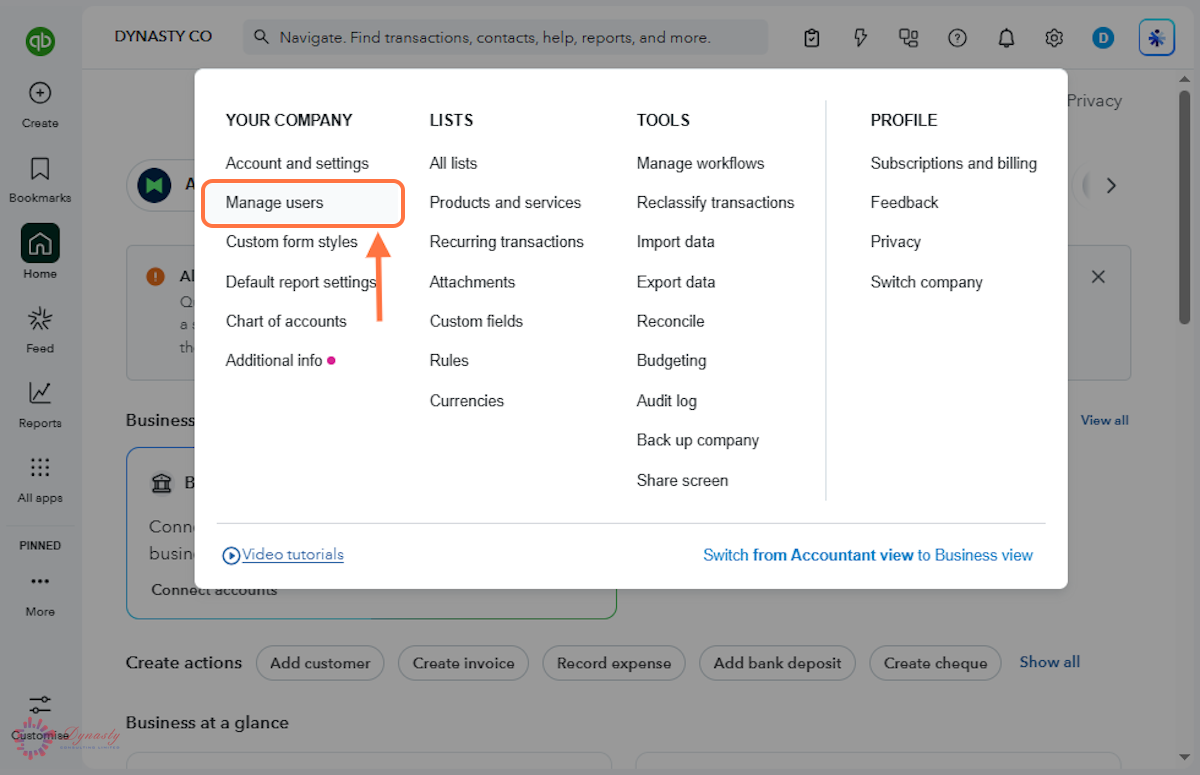
Figure – Opening Manage users
Step 3 – Click Add User
Click Add user on the right of the Manage users screen to begin creating access for a new person.
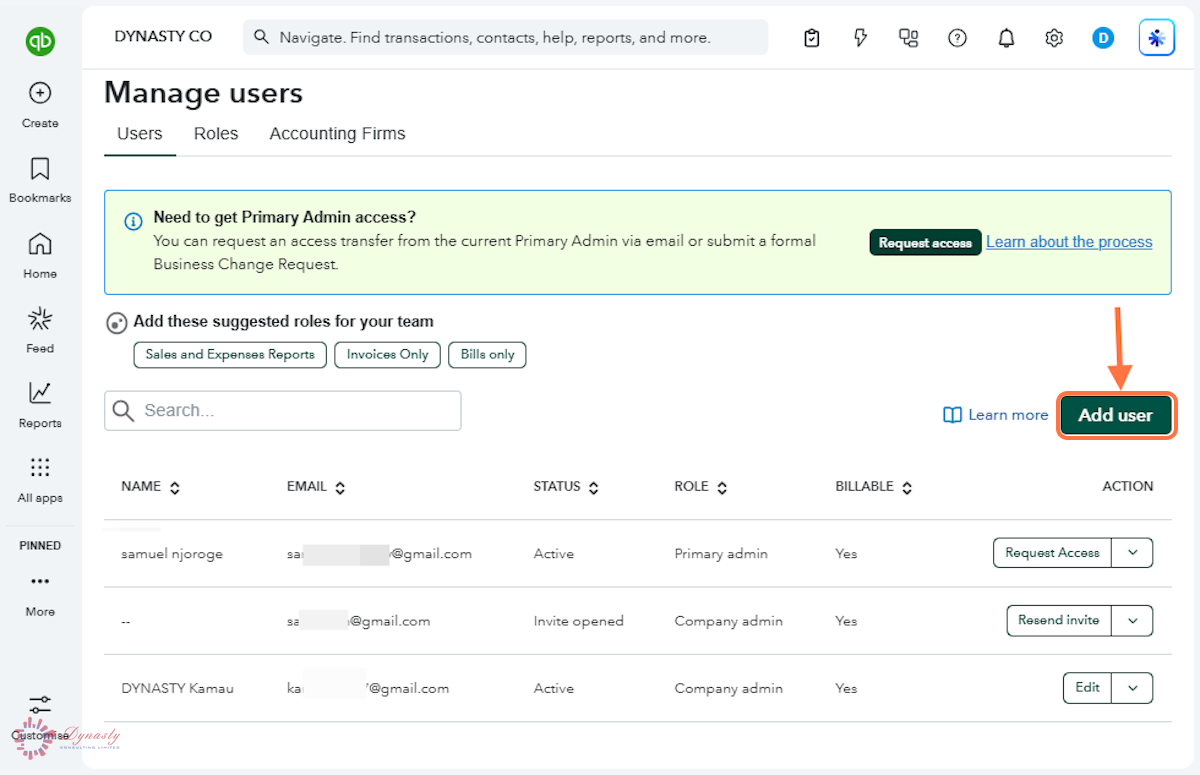
Figure – Starting a new user
Step 4 – Enter the User Details and Assign a Role
A First name – Enter the user’s first name.
B Last name – Enter the user’s surname.
C Email – The invitation is sent to this address, so check it carefully.
D Assign roles – Choose the role that matches the user’s responsibilities.
E Send invite – Click to email the invitation to the user.
Roles you can choose from include:
Accounts Payable – Bills, supplier transactions and payments made.
Accounts Receivable – Customer invoices, payments received and receivables.
Company admin – Full access to the company, its users, settings and accounting.
View reports only – Read-only access to financial reports, with no access to other accounting functions.
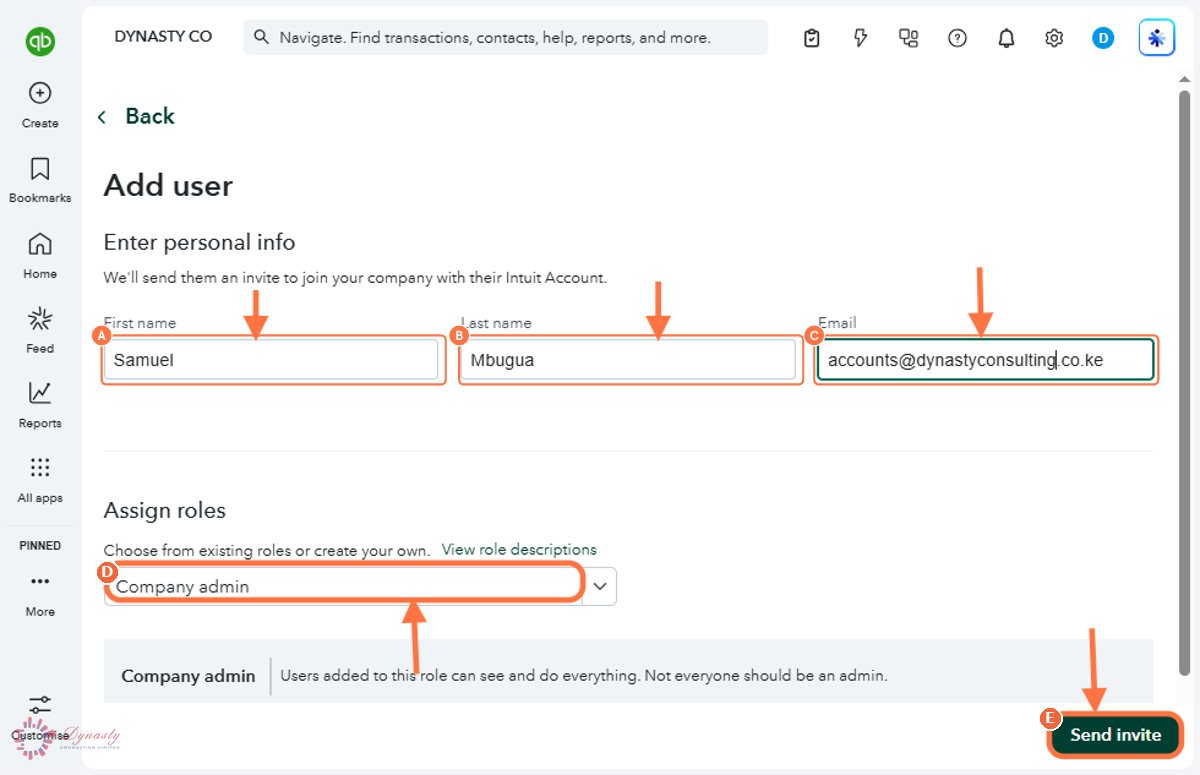
Figure – Entering the user details and role
Step 5 – Verify the Change with the Six-Digit Code
Once verified, the new user appears in Manage users with the status Invited until they accept.
A Enter the 6-digit code – Type the code sent to your registered phone number by text message or automated call.
B Continue – Click to complete verification and send the invitation.
C If the code does not arrive – Use I didn’t get a text message to resend it, or Call me instead to receive it by automated phone call.
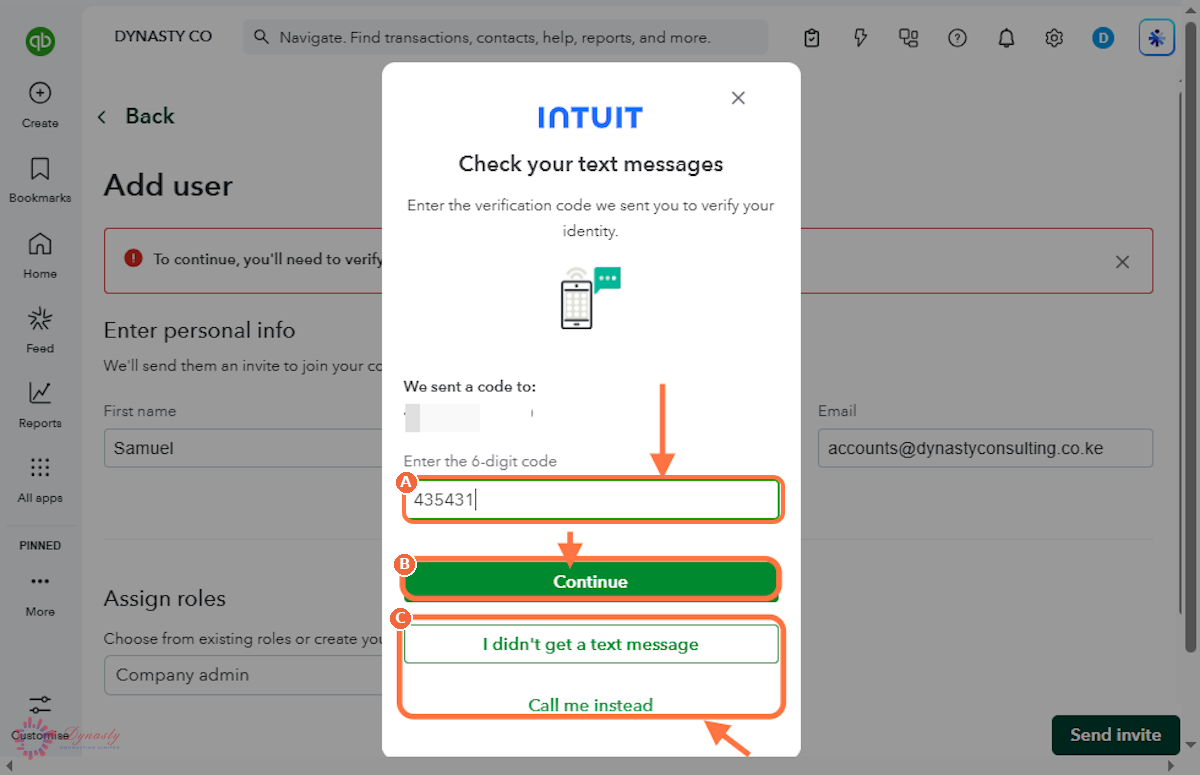
Figure – Verifying the change
How to Add Users in QuickBooks Online
QuickBooks Online allows administrators to add users and assign each of them a role. This lets employees, accountants and other authorised people work in the company file with only the access their responsibilities require.
Last Updated
Aug 18, 2026
Software
QuickBooks Online 2026
What You Will Learn
By the end of this guide you will be able to open Manage users, invite a new user, choose the right role for them, and complete the identity check that QuickBooks requires before the invitation is sent.
Before You Begin
You need administrator rights on the QuickBooks Online company, the new user's email address, and access to your own phone for verification.
Tip
Give each user the narrowest role that still lets them do their job. Roles can be changed later, and every change is recorded in the audit log.
Step 1 – Open Settings
There are no comments for now.
to be the first to leave a comment.