How to Create a Bill for an Item in QuickBooks Online
How to Create a Bill for an Item in QuickBooks Online
A bill can be recorded against items rather than expense categories. Using the Item details section links the purchase to a product or service in your list, so QuickBooks tracks quantities and costs against the item — essential for inventory and for job-costing purchases to customers.
Step 1 – Open a New Bill
A Create (+) – Click the Create button at the top of the left navigation bar to open the transaction menu.
B Bill – Select Bill under the Suppliers column.
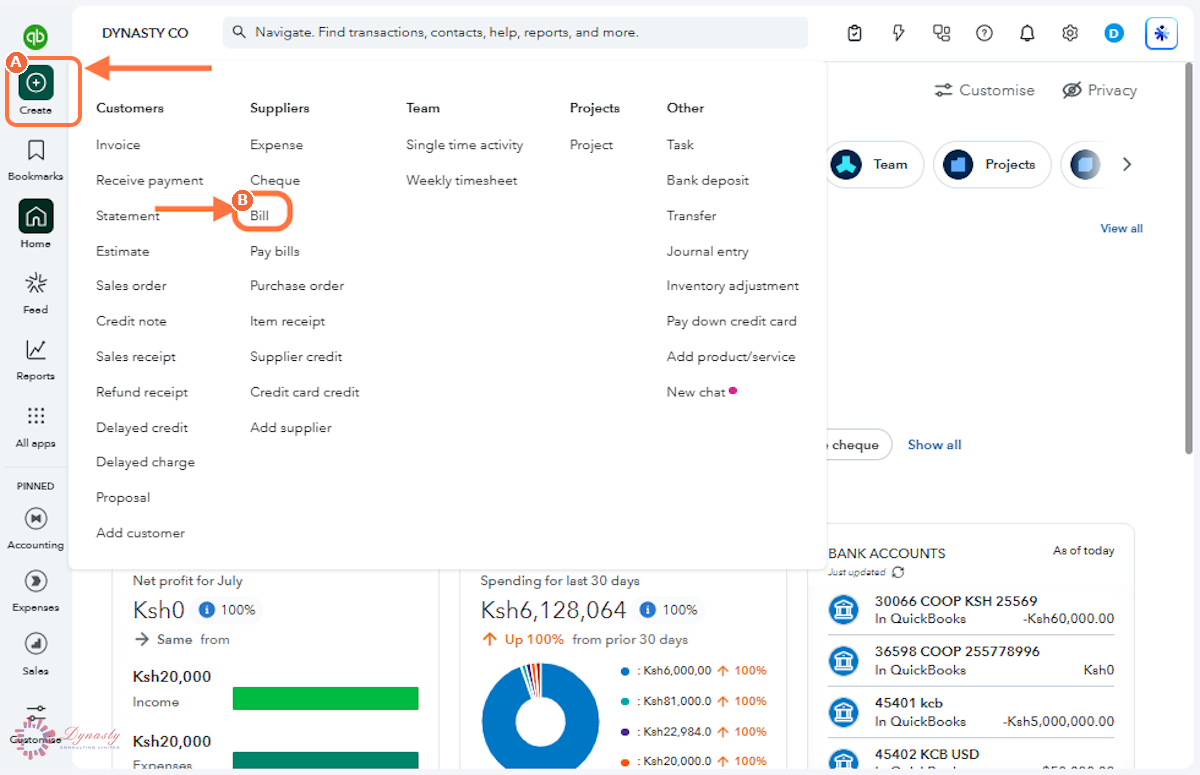
Figure – Opening a new bill
Step 2 – Complete the Bill with Item Details and Save
A Supplier – Select the supplier the bill came from.
B Bill date – The date on the supplier’s bill.
C Due date – When payment is due — set from the terms, adjustable to match the supplier’s document.
D Bill no. – The supplier’s bill number, for matching and tracing.
E Product/Service – In the Item details section, select the item being purchased.
F Description – The item description — it fills in from the item record and can be edited.
G Qty – The quantity purchased.
H Rate – The cost per unit charged by the supplier.
I Amount – The line total — quantity multiplied by rate. Check it against the bill.
J Customer – Optional — link the purchase to a customer or project for job-costing.
K Save and new – Saves this bill and opens a blank form for the next one. Use the arrow beside it for Save and close instead.
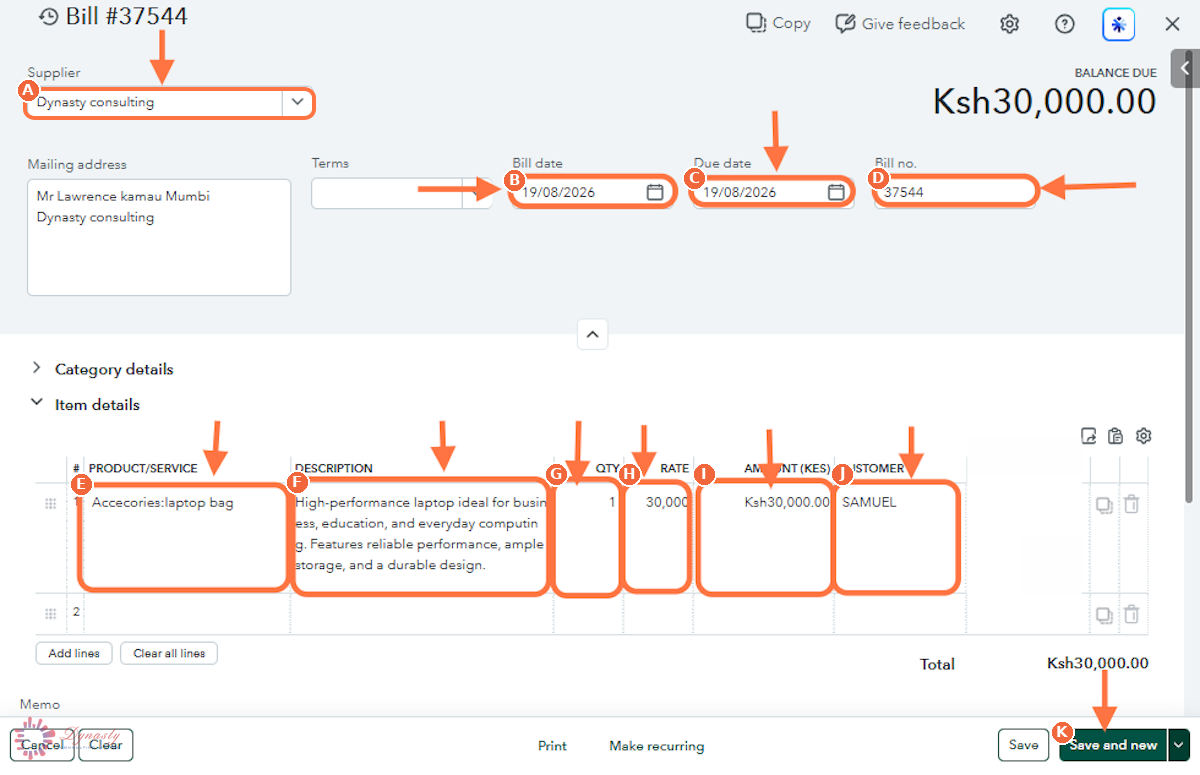
Figure – Completing the item bill
How to Create a Bill for an Item in QuickBooks Online
A bill can be recorded against items rather than expense categories. Using the Item details section links the purchase to a product or service in your list, so QuickBooks tracks quantities and costs against the item — essential for inventory and for job-costing purchases to customers.
Last Updated
Aug 19, 2026
Software
QuickBooks Online 2026
What You Will Learn
By the end of this guide you will be able to open a new bill, complete the supplier and bill details, record the purchase in the Item details section, and save the bill.
Before You Begin
Use this method when the bill is for products or services you track as items — the quantities and costs post against the item, not just an expense account. The item must already exist in Products & Services.
Tip
Use Item details instead of Category details whenever the purchase is something you resell or track — it updates quantity on hand and average cost automatically.
Step 1 – Open a New Bill
There are no comments for now.
to be the first to leave a comment.