How to Create an Invoice in QuickBooks Online
How to Create an Invoice in QuickBooks Online
An invoice bills a customer for products or services and records the amount owed to you in accounts receivable. This guide creates an invoice for a customer assigned a foreign currency — QuickBooks Online applies the customer’s currency and exchange rate automatically, and the same steps apply to home-currency invoices.
Step 1 – Open a New Invoice
A Create (+) – Click the Create button at the top of the left navigation bar to open the transaction menu.
B Invoice – Select Invoice under the Customers column to open a new invoice form.
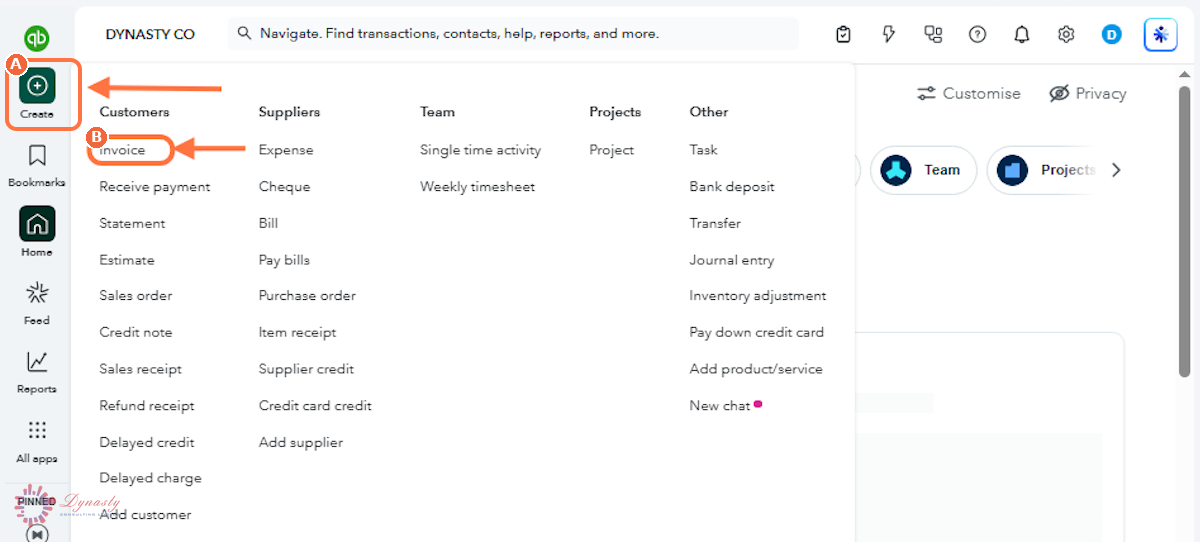
Figure – Opening a new invoice
Step 2 – Complete the Customer and Invoice Details
A Customer – Select the customer being invoiced. QuickBooks fills in their billing details automatically — and for a multi-currency customer, their assigned currency and exchange rate.
B Invoice no. – QuickBooks generates the next number automatically; enter your own if the business uses a custom numbering system.
C Terms – Select the payment terms — Due on receipt, Net 15, Net 30 or another predefined term. The terms set the due date and drive payment tracking.
D Invoice date – Enter or confirm the date of the invoice. The due date below updates automatically from the terms.
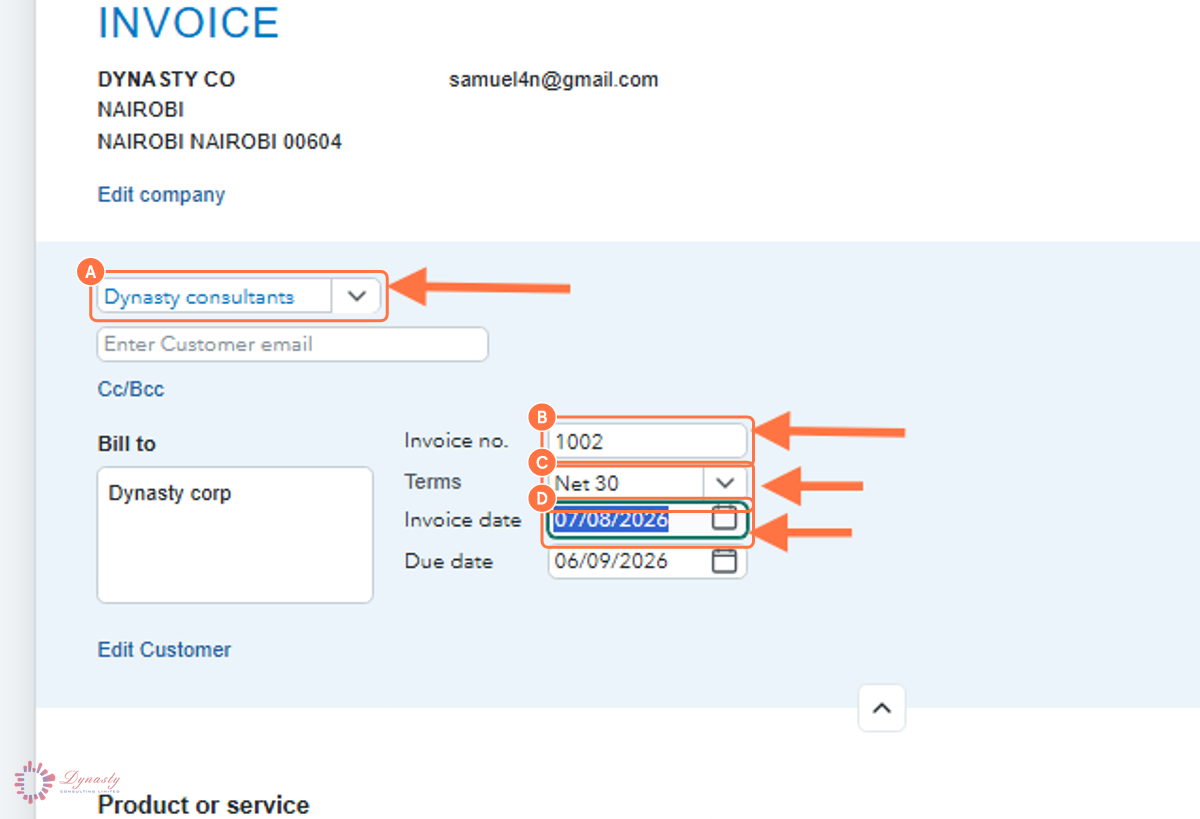
Figure – Completing the customer and invoice details
Step 3 – Add the Line Items and Save
A Product/service – Select the item being sold. It determines the income account and default pricing for the line.
B Description – A brief description of the product or service, shown on the invoice the customer receives.
C Qty – The number of units or hours being billed.
D Rate – The unit price. QuickBooks multiplies quantity by rate to calculate the line amount.
E Amount – The calculated line total — review it before saving.
F Save – Records the invoice without sending it.
G Review and send – Opens a preview and emails the invoice to the customer.
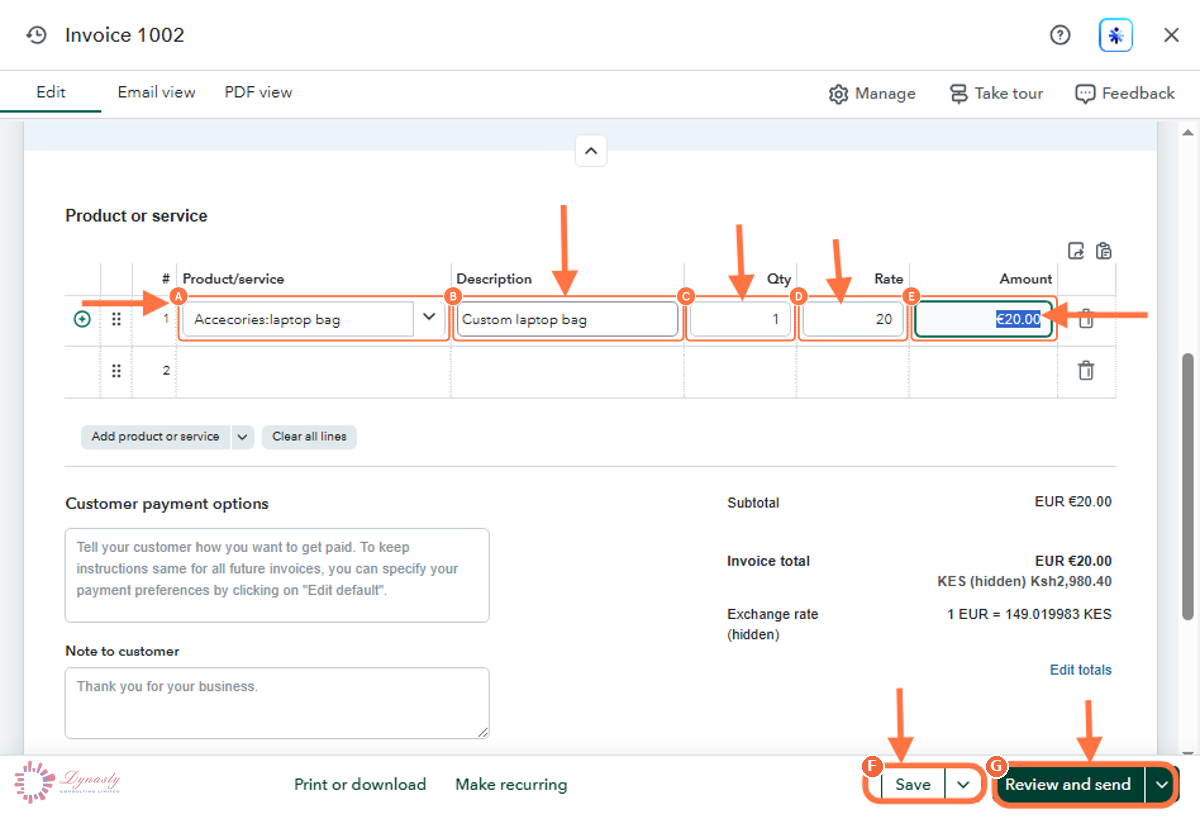
Figure – Adding the line items and saving
How to Create an Invoice in QuickBooks Online
An invoice bills a customer for products or services and records the amount owed to you in accounts receivable. This guide creates an invoice for a customer assigned a foreign currency — QuickBooks Online applies the customer’s currency and exchange rate automatically, and the same steps apply to home-currency invoices.
Last Updated
Aug 19, 2026
Software
QuickBooks Online 2026
What You Will Learn
By the end of this guide you will be able to open a new invoice, complete the customer and invoice details, add the products or services being billed, and save or send the invoice.
Before You Begin
You need the customer set up in QuickBooks Online and the products or services already in the Products & Services list. For a foreign-currency invoice, Multi-Currency must be enabled and the customer assigned their currency when created.
Tip
Set payment terms on every invoice — QuickBooks calculates the due date from them and uses it to flag overdue invoices and build your debtors reports.
Step 1 – Open a New Invoice
There are no comments for now.
to be the first to leave a comment.