How to Add Bills in QuickBooks Online
How to Add Bills in QuickBooks Online
Bills record expenses you owe to suppliers but have not yet paid. Recording bills as they arrive keeps accounts payable accurate and lets you track outstanding amounts, due dates and upcoming payments instead of discovering them when the supplier calls.
Step 1 – Open the Create Menu
Click the Create (+) button at the top of the left navigation bar to open the menu of transactions you can create.
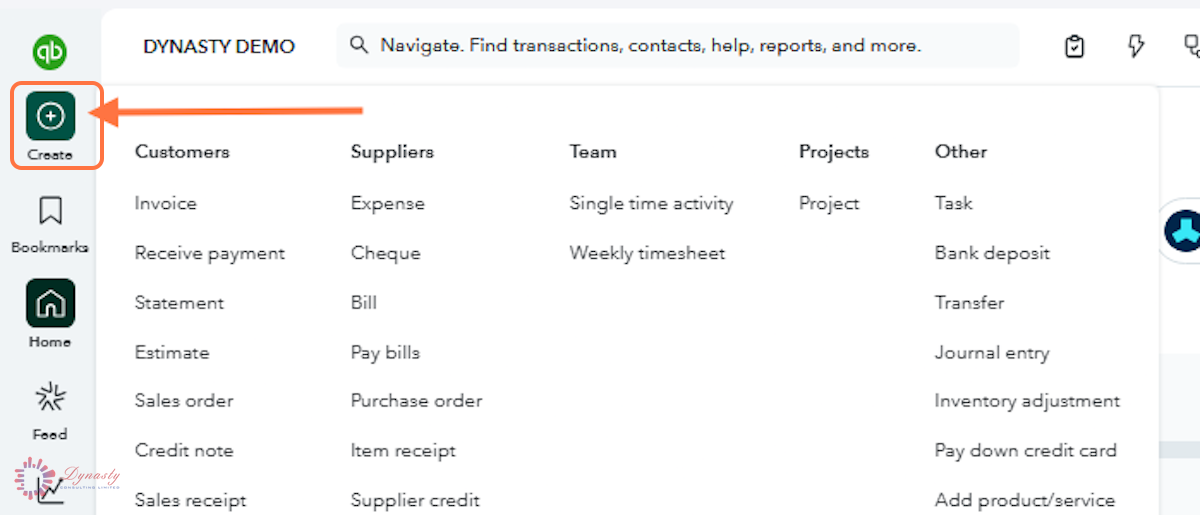
Figure – Opening the Create menu
Step 2 – Select Bill
Under the Suppliers column of the Create menu, click Bill. The bill entry form opens, where you record purchases made on credit from a supplier.
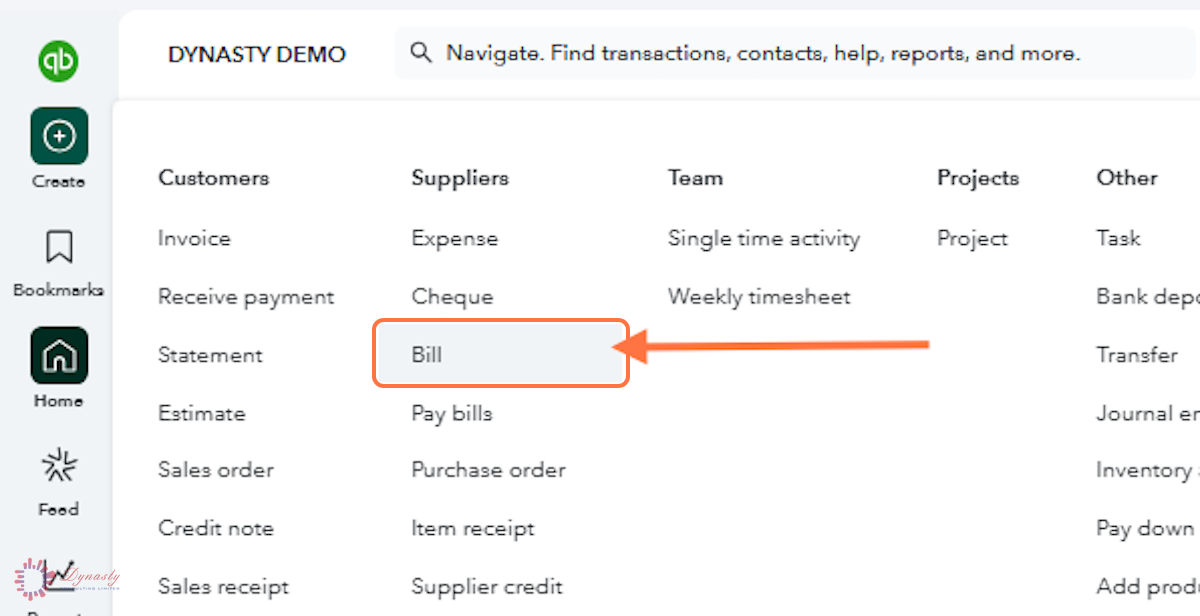
Figure – Selecting Bill
Step 3 – Complete the Bill Details and Save
Check the Due date shown next to the bill date — it is set from the terms, and you can adjust it to match the supplier’s document. When everything matches the bill, click Save (or Save and new to enter another bill straight after).
A Supplier – Select the supplier the bill came from. Add a new supplier directly from the drop-down if they are not listed.
B Terms – The supplier’s payment terms — QuickBooks calculates the due date from them.
C Bill date – The date on the supplier’s bill, not the date you are entering it.
D Bill no. – The bill or invoice number printed on the supplier’s document, so the bill is easy to match and trace.
E Category – The expense account that best represents what the bill is for.
F Description – A brief explanation of the expense or service being billed.
G Amount – The cost for that category line — it must match the supplier’s bill exactly.
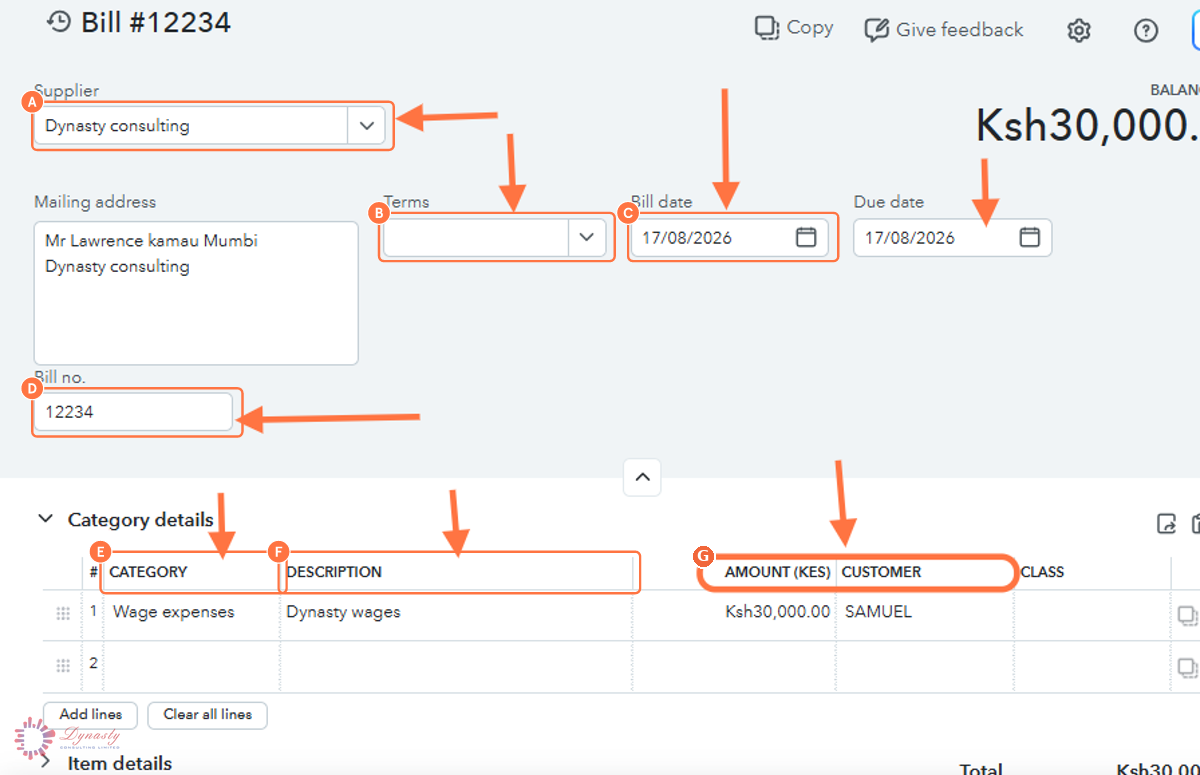
Figure – Completing the bill details
How to Add Bills in QuickBooks Online
Bills record expenses you owe to suppliers but have not yet paid. Recording bills as they arrive keeps accounts payable accurate and lets you track outstanding amounts, due dates and upcoming payments instead of discovering them when the supplier calls.
Last Updated
Aug 19, 2026
Software
QuickBooks Online 2026
What You Will Learn
By the end of this guide you will be able to open a new bill, complete the supplier and bill details, categorise the expense, and save the bill to accounts payable.
Before You Begin
You need the supplier set up in QuickBooks Online and their bill in hand — the bill number, date and amounts should be entered exactly as they appear on the supplier’s document.
Tip
Enter the supplier’s own bill number in the Bill no. field. QuickBooks warns you if that number has already been used for the supplier — your best protection against paying the same bill twice.
Step 1 – Open the Create Menu
There are no comments for now.
to be the first to leave a comment.