How to Accept an Intuit Invite for a QuickBooks Online Company
How to Accept an Intuit Invite for a QuickBooks Online Company
An Intuit invitation is how a company owner or administrator gives another person access to a QuickBooks Online company. Accepting the invitation links your Intuit account to that company so you can sign in with your own credentials.
Step 1 – Open the Invitation Email and Click Accept Invite
Open the QuickBooks Online invitation email in your inbox. It is sent by Intuit and names the company you have been invited to. Click the green Accept Invite button to begin.
If the button does not open, copy the link printed underneath it and paste it into your browser address bar.
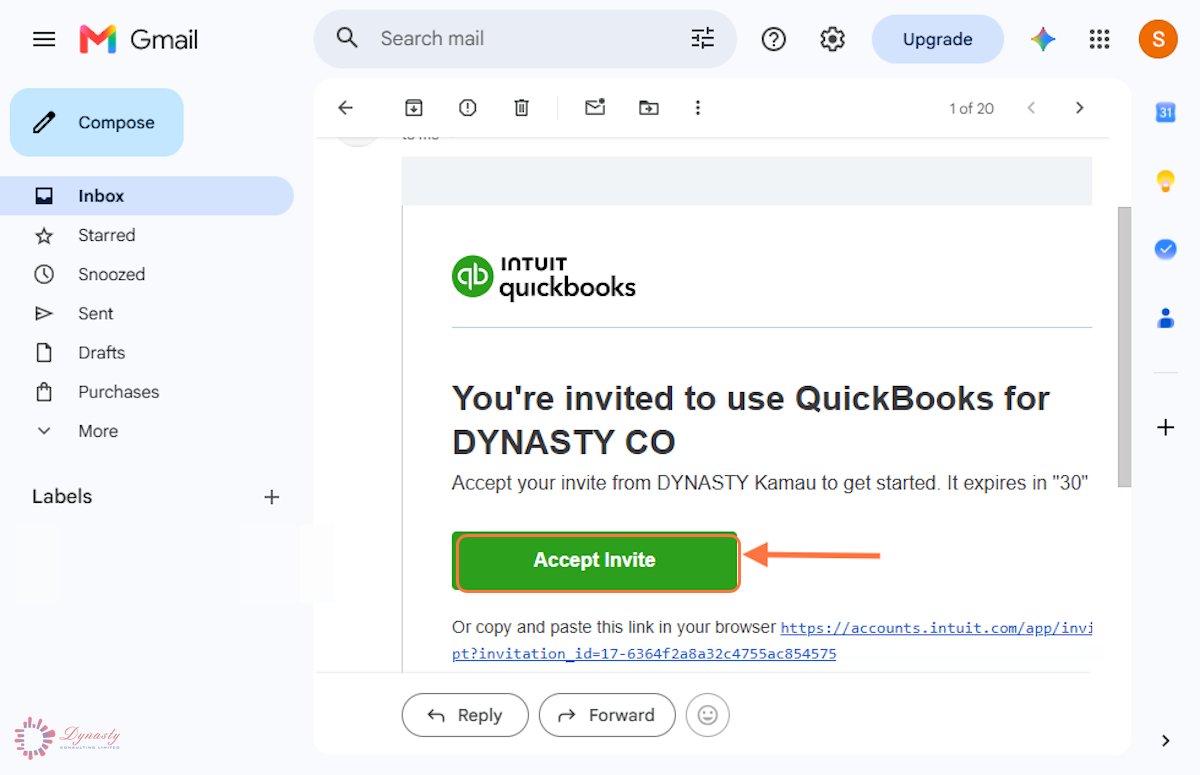
Figure – Accepting the invitation from the email
Step 2 – Enter Your Account Details
Fill in the fields marked on the screenshot. If you already have an Intuit account, sign in instead and the invitation will attach to that account.
A Email address – Enter the address the invitation was sent to.
B User ID – The ID you will sign in with. It may be the same as your email address.
C First name – Enter your first name as it should appear in the company file.
D Last name – Enter your surname.
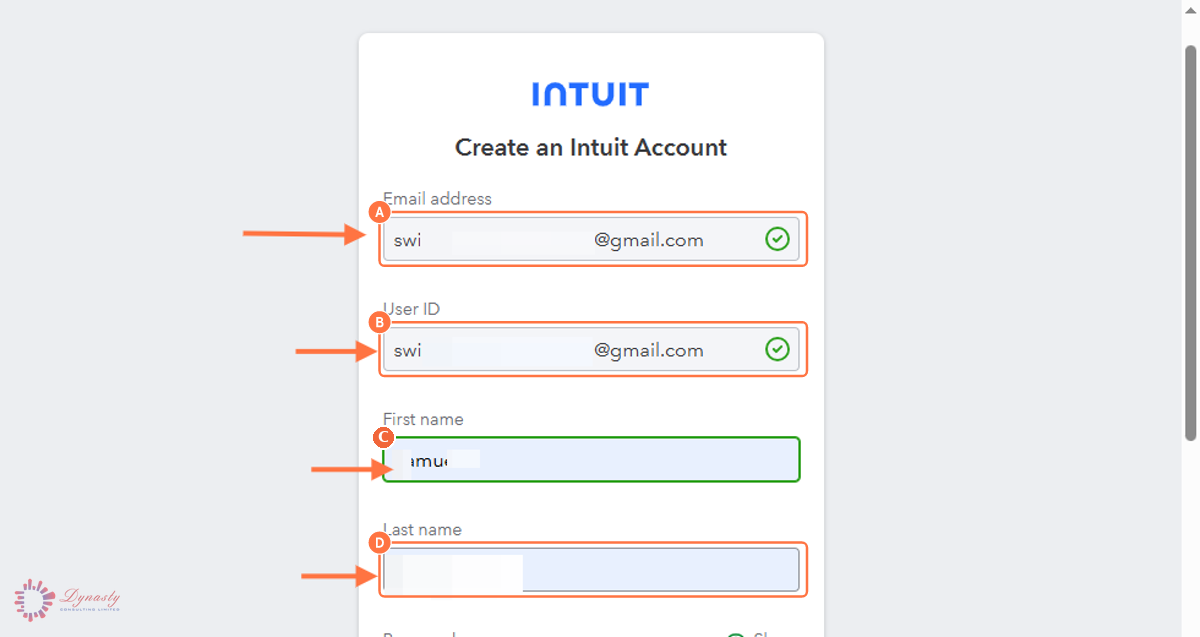
Figure – Entering your Intuit account details
Step 3 – Set a Password and Phone Number
A Password – Use eight or more characters with upper and lower case letters, a number and a symbol. Each requirement turns green when it is met.
B Phone – Enter a number you can access. Intuit sends verification codes to this number, so include the correct country code.
C Create an Intuit Account – Click to submit the details and continue.
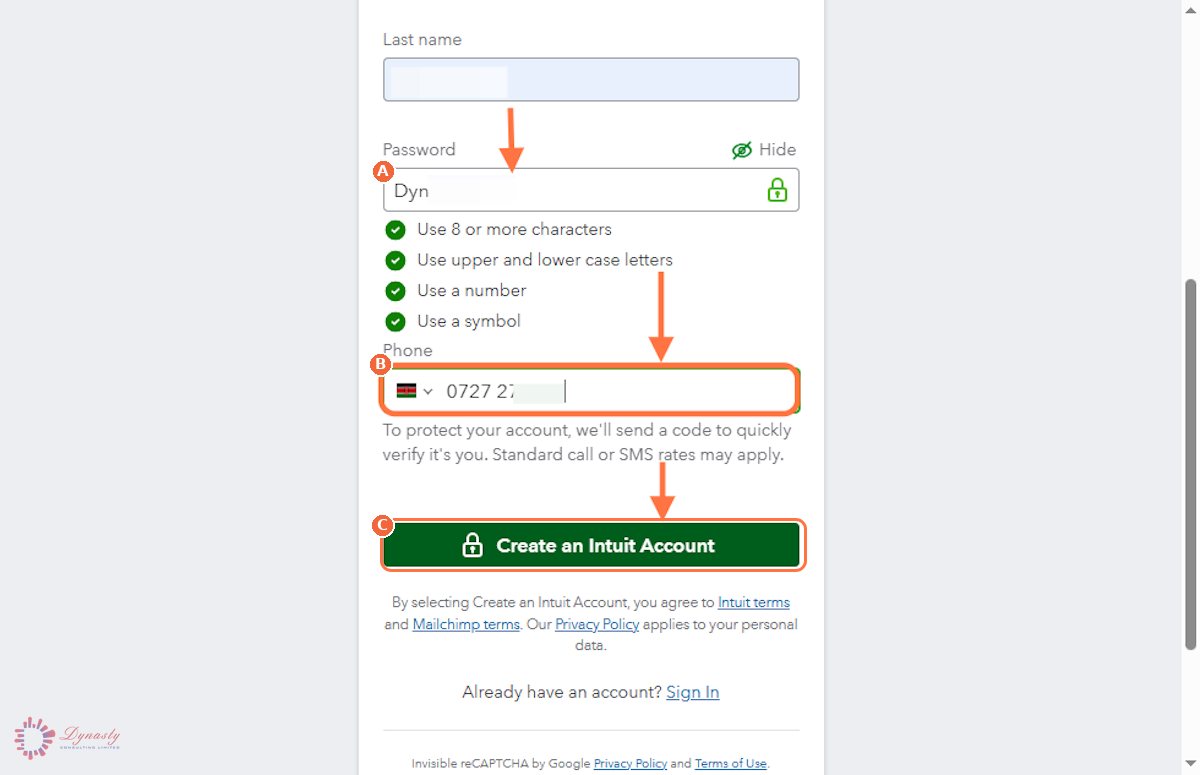
Figure – Setting the password and phone number
Step 4 – Verify Your Account with the Six-Digit Code
Once verification is complete you are signed in to the QuickBooks Online company you were invited to.
A Enter the 6-digit code – Type the code sent to your registered phone number by text message or automated call.
B Continue – Click to finish verification and open the company.
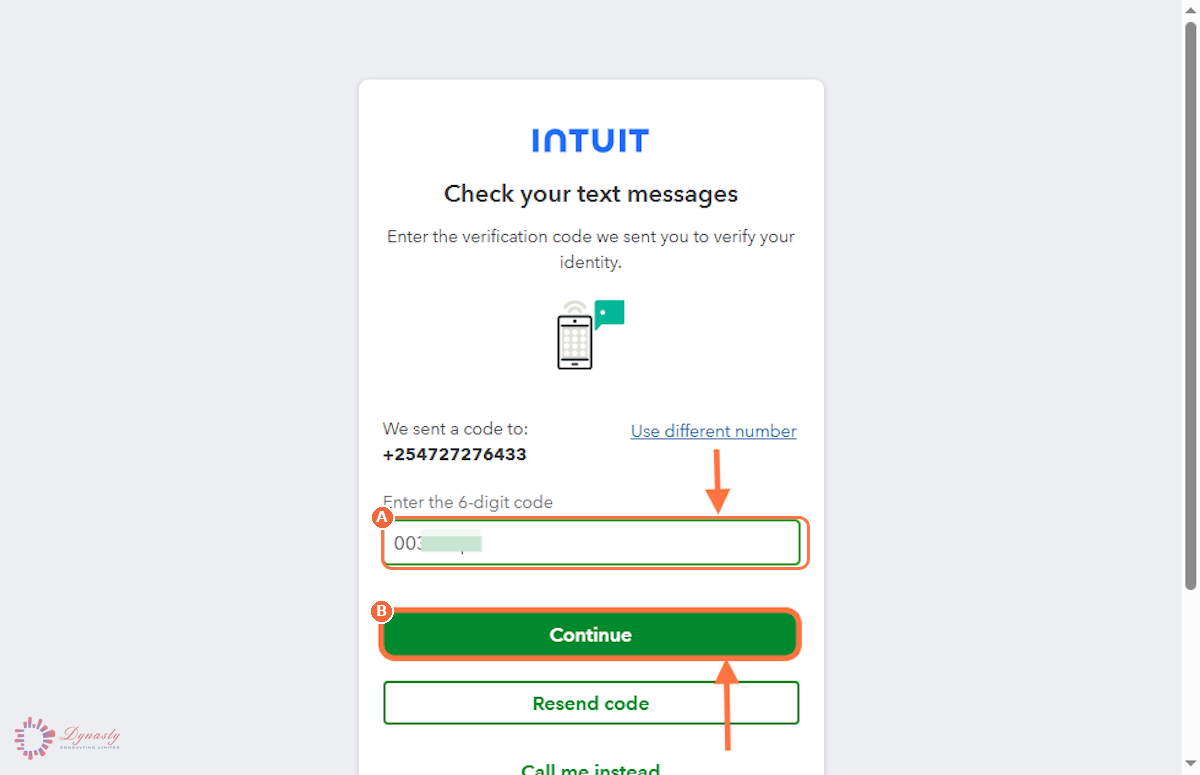
Figure – Entering the six-digit verification code
How to Accept an Intuit Invite for a QuickBooks Online Company
An Intuit invitation is how a company owner or administrator gives another person access to a QuickBooks Online company. Accepting the invitation links your Intuit account to that company so you can sign in with your own credentials.
Last Updated
Aug 18, 2026
Software
QuickBooks Online 2026
What You Will Learn
By the end of this guide you will be able to open a QuickBooks Online invitation email, create or sign in to an Intuit account, set a secure password and phone number, and verify the account with a six-digit code.
Before You Begin
You need the invitation email sent by Intuit and access to the phone number you will register for verification codes.
Tip
Accept the invitation from the same email address it was sent to. Invitations expire (usually after 30 days), so act on them promptly or ask the administrator to resend.
Step 1 – Open the Invitation Email and Click Accept Invite
There are no comments for now.
to be the first to leave a comment.