How to Add a Supplier Credit in QuickBooks Online
How to Add a Supplier Credit in QuickBooks Online
A supplier credit (bill credit) records a credit a supplier has given you — for returned items, an overpayment, a pricing adjustment or another correction. The credit reduces what you owe and can be applied against a future bill from that supplier.
Step 1 – Open a New Supplier Credit
A Create (+) – Click the Create button at the top of the left navigation bar to open the transaction menu.
B Supplier credit – Select Supplier credit under the Suppliers column.
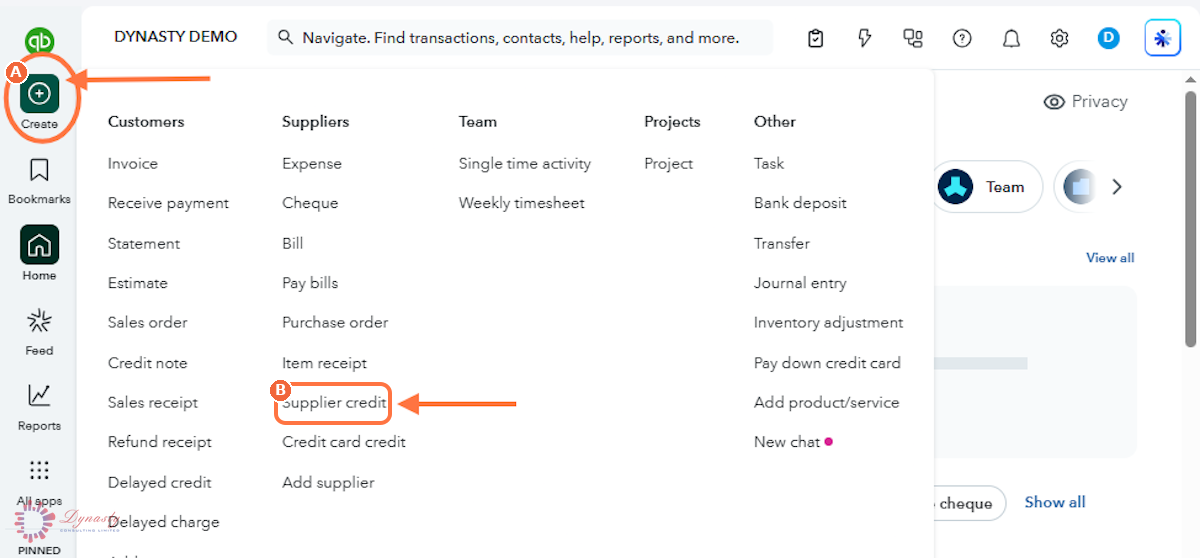
Figure – Opening a new supplier credit
Step 2 – Complete the Credit Details and Save
Click Save and close at the bottom of the form to record the credit. It now sits on the supplier’s account, ready to be applied against their next bill.
A Supplier – Choose the supplier who issued the credit.
B Payment date – The date on the supplier’s credit note.
C Ref no. – The reference number exactly as it appears on the supplier’s credit note.
D Category – The expense category being credited — use the same category as the original bill so the expense is reversed correctly.
E Description – A clear description of the item, service or reason for the credit.
F Amount – The value of the credit.
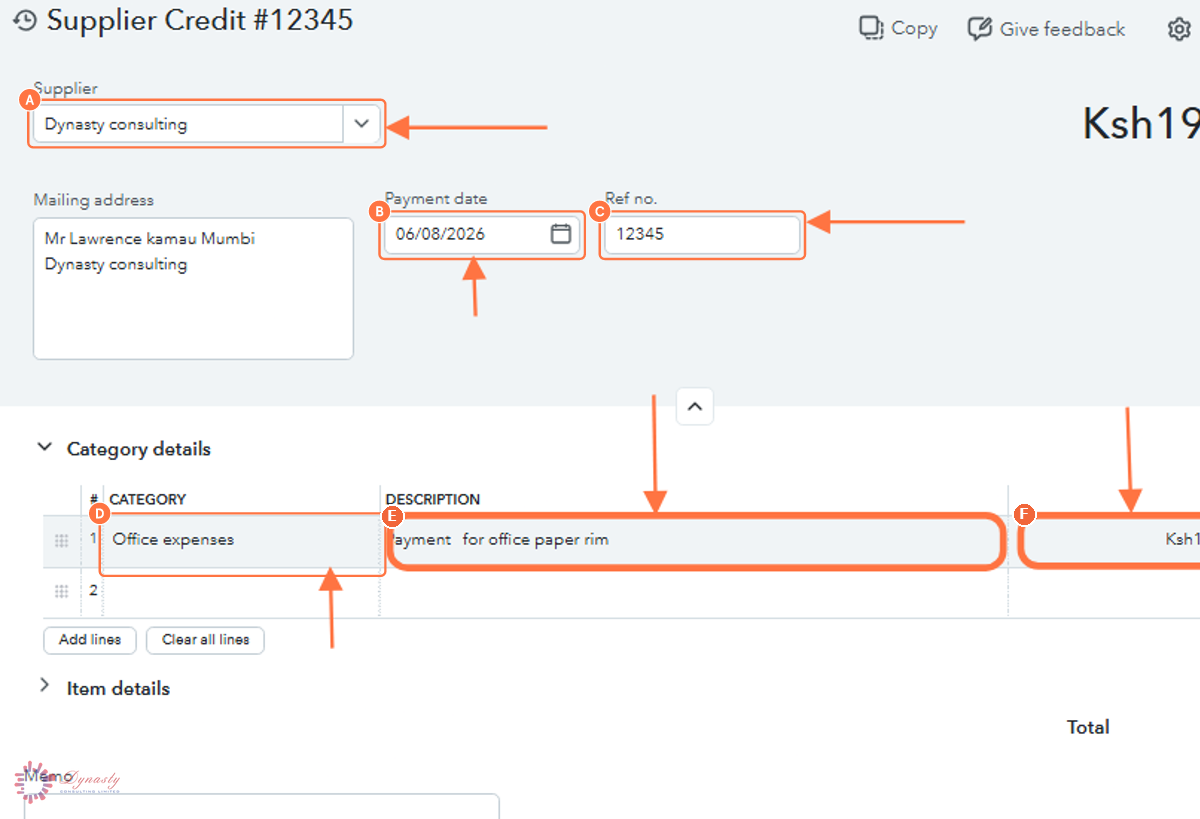
Figure – Completing the supplier credit
How to Add a Supplier Credit in QuickBooks Online
A supplier credit (bill credit) records a credit a supplier has given you — for returned items, an overpayment, a pricing adjustment or another correction. The credit reduces what you owe and can be applied against a future bill from that supplier.
Last Updated
Aug 19, 2026
Software
QuickBooks Online 2026
What You Will Learn
By the end of this guide you will be able to open a new supplier credit, complete the supplier, reference and category details, and save the credit for use against future bills.
Before You Begin
Have the supplier’s credit note in hand — its reference number, date and amount — and know which expense category the original bill used, so the credit reverses the same account.
Tip
Apply the credit the next time you pay that supplier — on the Pay Bills screen it appears under Credit Applied, reducing the payment automatically.
Step 1 – Open a New Supplier Credit
There are no comments for now.
to be the first to leave a comment.