How to Change or Reset Your Password in QuickBooks Online
How to Change or Reset Your Password in QuickBooks Online
Your QuickBooks Online password belongs to your Intuit account. If you have forgotten it, or simply want to replace it, Intuit resets it after verifying your identity with a one-time code.
Step 1 – Confirm Your Email or User ID
A Email or user ID – Confirm the address shown is the account you want to reset.
B Sign in – Click to continue to the password screen.
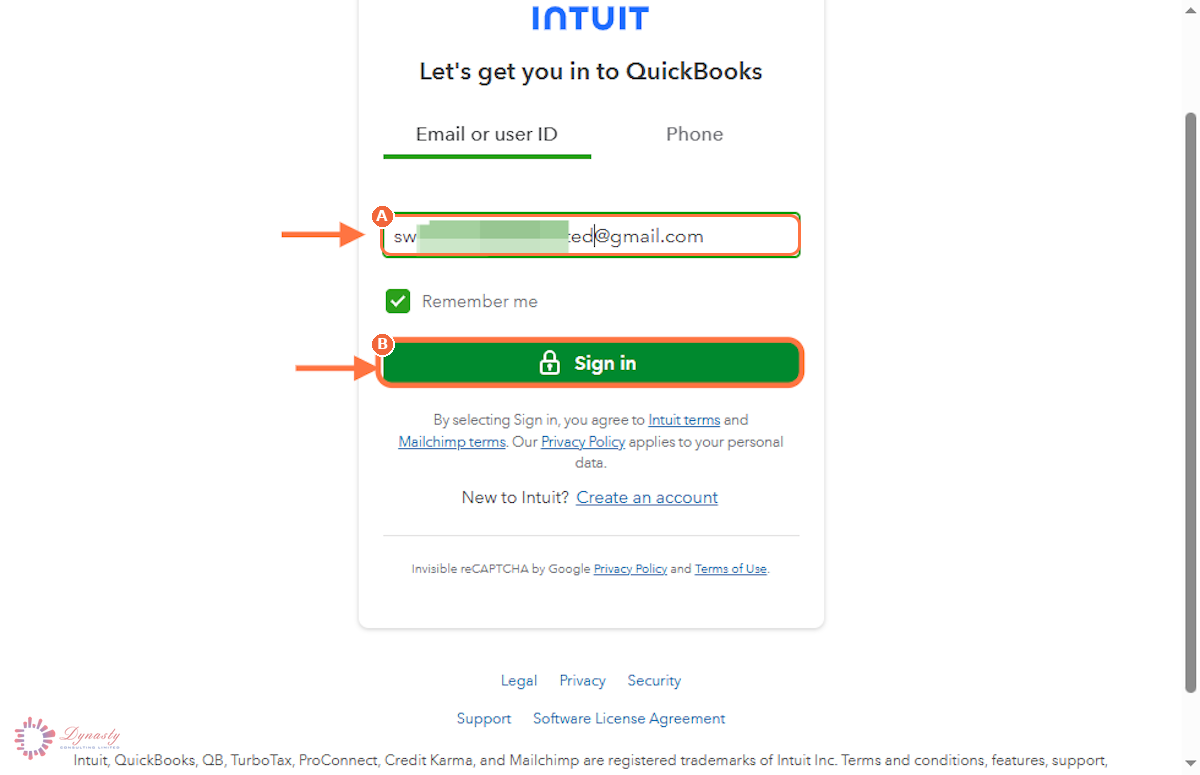
Figure – Confirming the account
Step 2 – Click Forgot Password
On the password screen, click Forgot password? below the sign-in options.
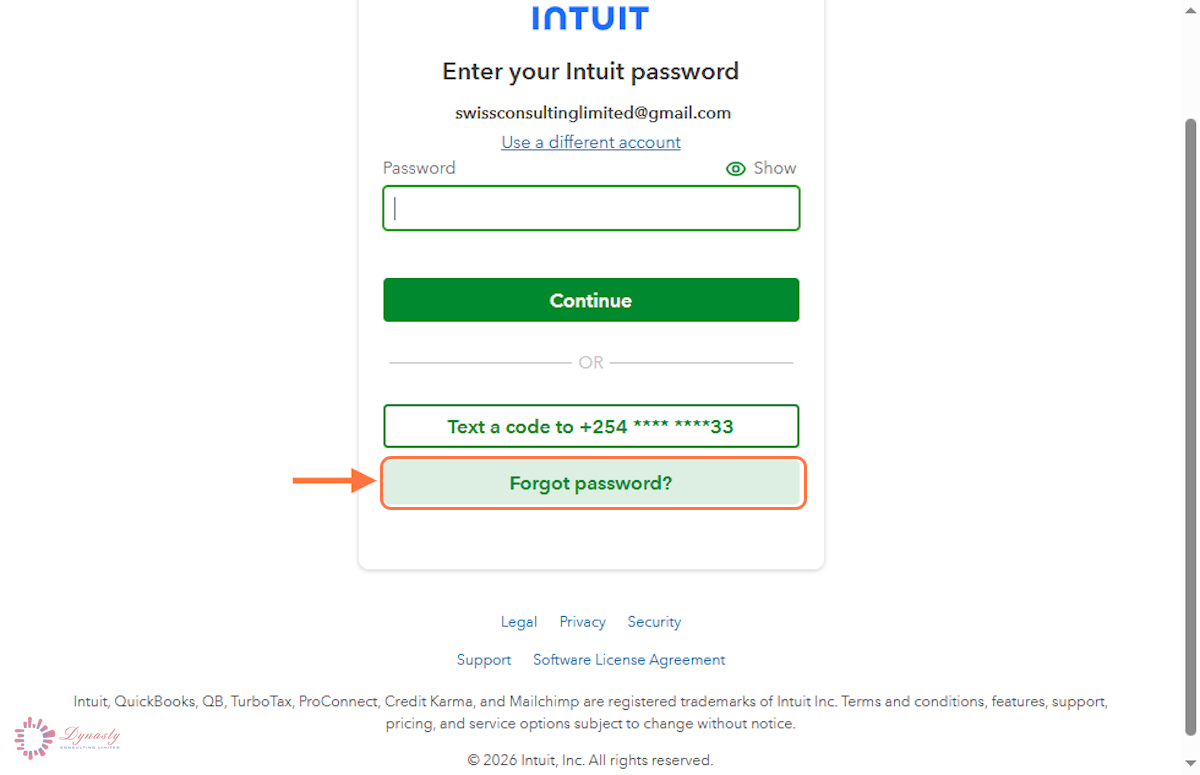
Figure – Starting the password reset
Step 3 – Request a Verification Code
Choose Text a code to receive the code by SMS. Email a code sends it to the address on the account instead.
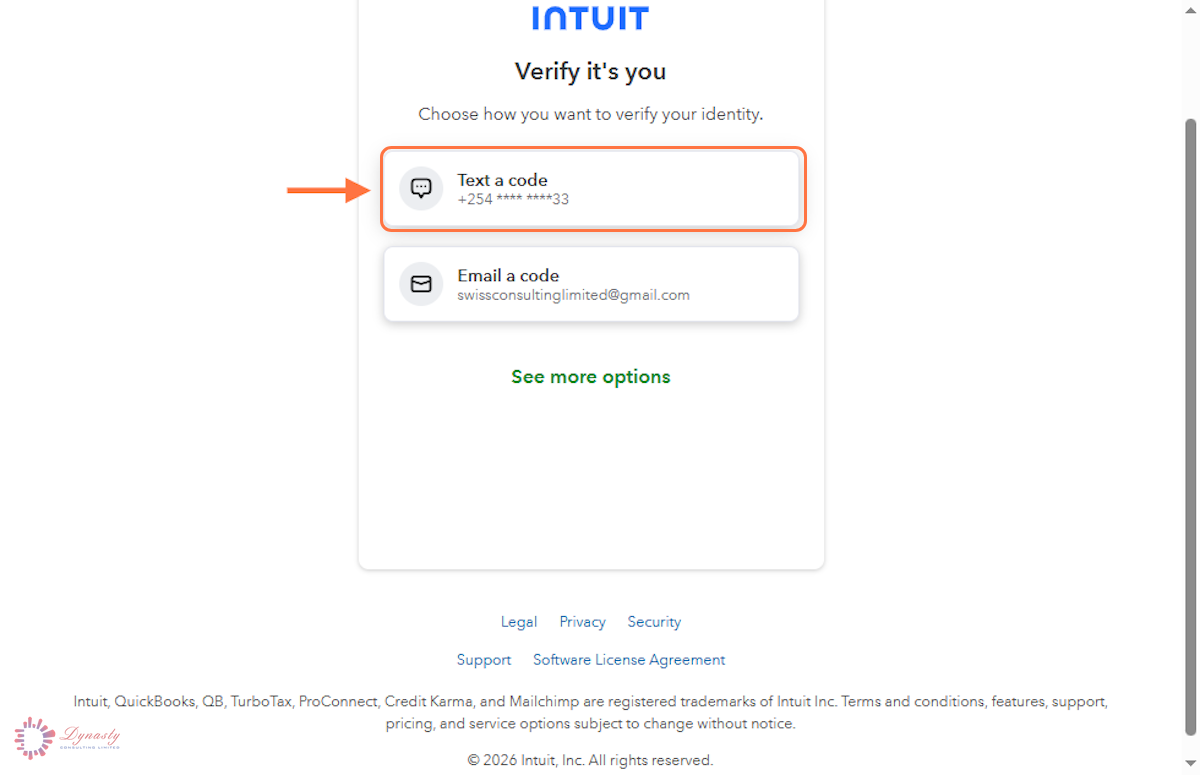
Figure – Requesting the code
Step 4 – Enter the Verification Code
A Verification code – Enter the code sent to your phone.
B Continue – Click to proceed to the new password screen.
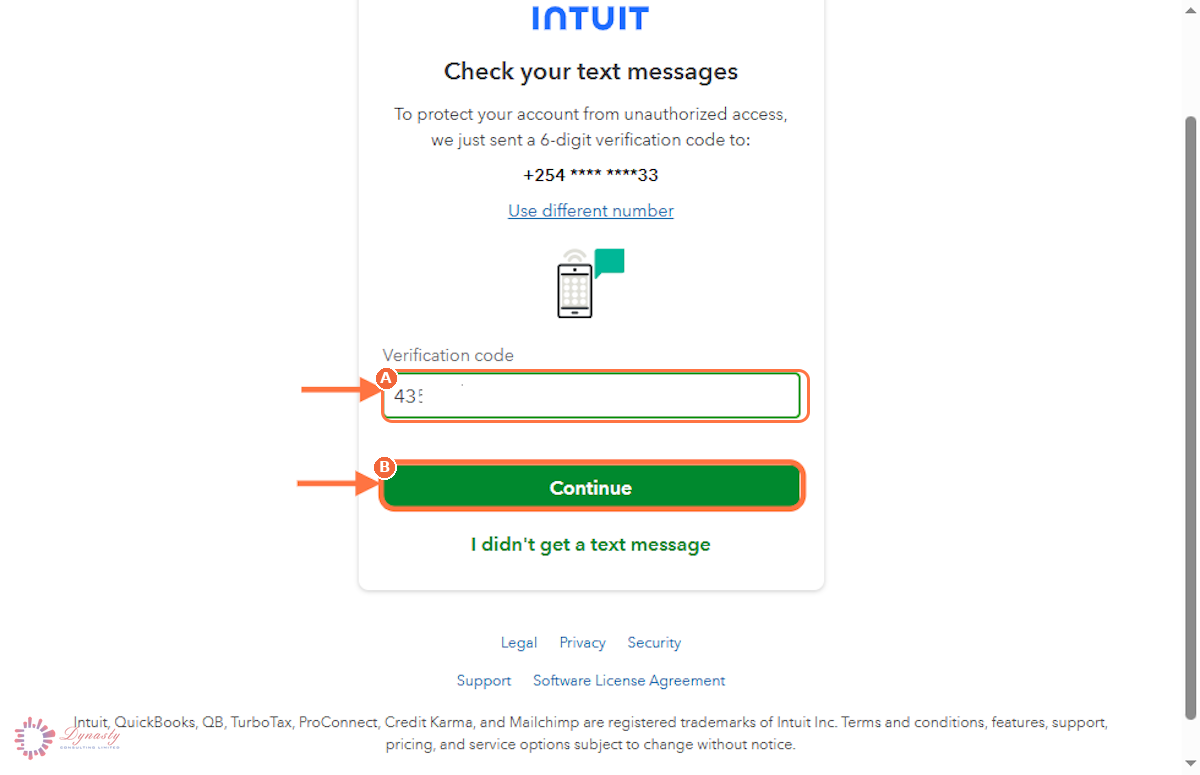
Figure – Entering the verification code
Step 5 – Set the New Password
Your password is now reset. Use it the next time you sign in to QuickBooks Online or any other Intuit product.
A New password – Enter a password that meets every requirement listed. Each one turns green when it is met.
B Confirm new password – Re-type the same password exactly.
C Update password – Click to save the new password.
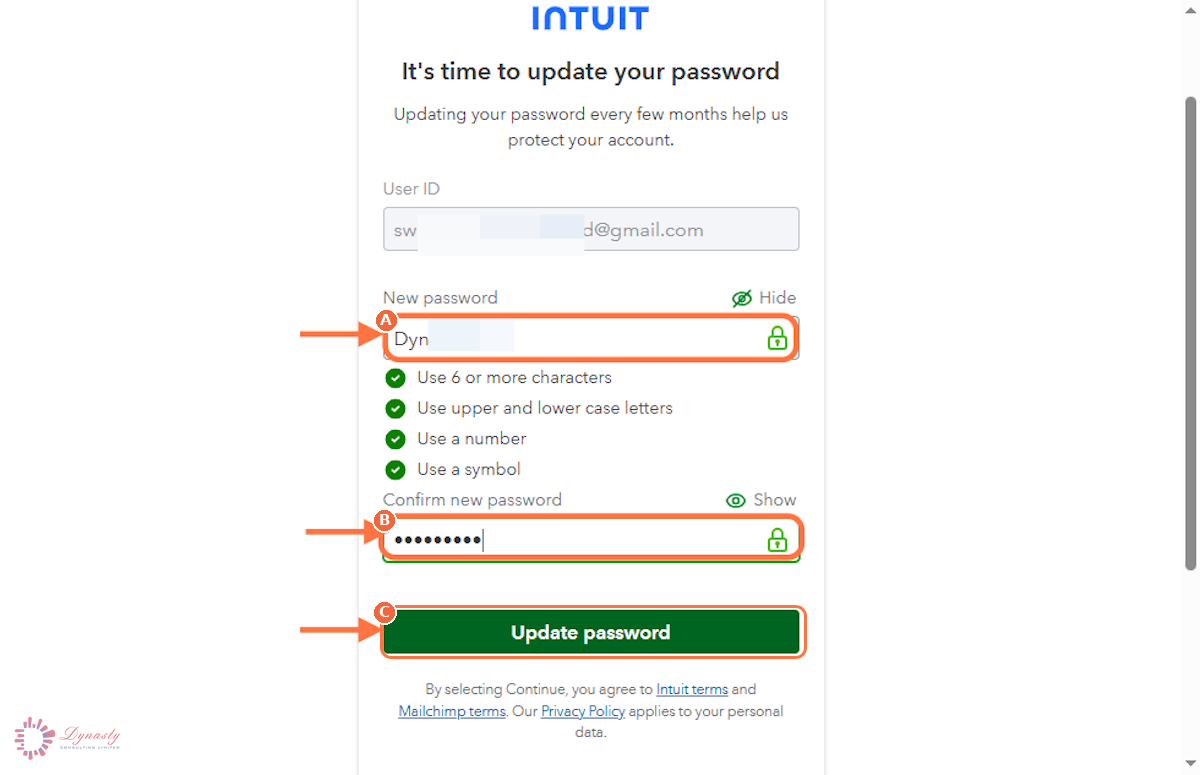
Figure – Setting and confirming the new password
How to Change or Reset Your Password in QuickBooks Online
Your QuickBooks Online password belongs to your Intuit account. If you have forgotten it, or simply want to replace it, Intuit resets it after verifying your identity with a one-time code.
Last Updated
Aug 18, 2026
Software
QuickBooks Online 2026
What You Will Learn
By the end of this guide you will be able to start a password reset from the sign-in screen, verify your identity by text message, and set and confirm a new password.
Before You Begin
You need access to the phone number or email address registered on the Intuit account, because a one-time code is sent to it.
Tip
Use a password you do not use anywhere else, and store it in a password manager rather than a browser note or spreadsheet.
Step 1 – Confirm Your Email or User ID
There are no comments for now.
to be the first to leave a comment.